CTL Chromebook NL71CT-L - Add a User Account
Here's how to add a user profile so multiple people can use your CTL Chromebook.
If you need to add a user account to your CTL® Chromebook NL71CT-L, flow these step-by-step instructions.
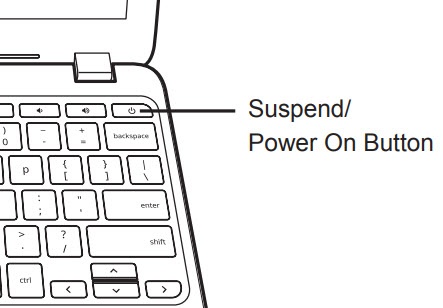
- Press and hold thePower on buttonuntil the options screen appears..
- Tap or clickSign out.
- Tap or clickAdd Person.
- Enter your email address or phone number into the 'Email or phone' field then tap or clickNEXT.
- Enter your password into the 'Password' field then tap or clickNEXT.
- Review the options then tap or clickAccept and continue.
- Review the Google Play Terms of Service / Privacy Policy, accept any of the following, then tap or clickI Agree:
- Backup Google Drive
- Help apps find location