Nokia 8 V 5G UW - Common Camera Settings
Here's info on common camera settings (e.g., flash, timer, front / rear camera, etc.) for your Nokia 8 V 5G UW.
For additional info on camera settings, refer to the Camera section of the user guide.
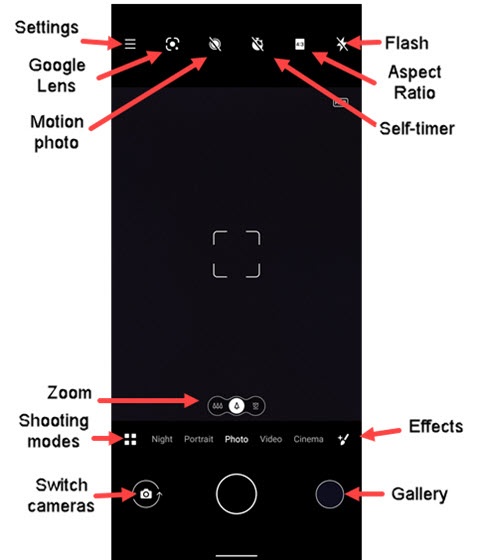
Settings
- From a Home screen, tap theCamera icon
.
If unavailable, swipe up or down from the center of the display then tapCamera. - TapSettings
.
- Select an option:
- Shutter soundTap to turn on
or off
.
- GridTap to turn on or off.
- Location tagTap to turn on or off.
- Mirror photos for front cameraTap to turn on or off.
- Scene detectionTap to turn on or off.
- HEIF formatTap to turn on or off.
- HDRTap to turn on or off.
- WatermarkTap to turn on or off.
Data Storage
- From a Home screen, tap theCamera iconIf unavailable, swipe up or down from the center of the display then tapCamera.
- TapData storage.
- Select an option:Selected with blue dot.
- Phone memory
- SD card
Long Press On Shutter
- From a Home screen, tap theCamera iconIf unavailable, swipe up or down from the center of the display then tapCamera.
- TapLong press on shutter.
- Select an option:Selected with blue dot.
- Capture video quickly
- Burst shots
Video Resolution
- From a Home screen, tap theCamera iconIf unavailable, swipe up or down from the center of the display then tapCamera.
- TapVideo resolution.
- Select an option:Selected with blue dot.
- Video from rear camera:
- UHD 4K/30fps
- FHD 1080P/60fps
- FHD 1080P/30fps
- Video from front camera:
- 2K/60pfs
- 2K/30pfs
- FHD 1080P/60fps
- FHD 1080P/30fps
Motion Photo
- From a Home screen, tap theCamera iconIf unavailable, swipe up or down from the center of the display then tapCamera.
- Tap theMotion icon
to turn on or off.
Highlighted blue when enabled.
Self-timer
- From a Home screen, tap theCamera iconIf unavailable, swipe up or down from the center of the display then tapCamera.
- Tap theSelf-timer icon
.
- Select an option:
- Off
- 3 secs
- 10 secs
Aspect Ratio
- From a Home screen, tap theCamera iconIf unavailable, swipe up or down from the center of the display then tapCamera.
- Tap theAspect Ratio icon
to automatically adjust your shots for the current scenery.
Flash
- From a Home screen, tap theCamera iconIf unavailable, swipe up or down from the center of the display then tapCamera.
- Tap theFlash icon
.
- Select an option:
- Off
- Auto
- On
Zoom
- From a Home screen, tap theCamera iconIf unavailable, swipe up or down from the center of the display then tapCamera.
- Tap theZoom iconto change between:
- Ultra wide angle
- Wide angle
- Macro angle
Shooting Modes
- From a Home screen, tap theCamera iconIf unavailable, swipe up or down from the center of the display then tapCamera.
- To change the camera mode, swipe left or right to select an option.
- TapMore, then choose an option:
- Panorama
- Slow motion
- Time-lapse
- Pro
- Night
- Portrait
- PhotoCapture a picture.
- VideoCapture video.
- Cinema
Effect
- From a Home screen, tap theCamera iconIf unavailable, swipe up or down from the center of the display then tapCamera.
- Tap theBeautify icon
.
- Drag thebarleft or right to change the effect.
Switch Cameras
- From a Home screen, tap theCamera iconIf unavailable, swipe up or down from the center of the display then tapCamera.
- Tap theCamera Facing icon
to switch between rear and front-facing camera.