Smart Wrist by Orbic - Add / Remove a Wi-Fi Network
Here's how to connect to a Wi-Fi network or remove a saved connection on your Smart Wrist.
Ensure the software on your Smart Wrist™ by Orbic® is up to date as the steps below apply to the most recent version.
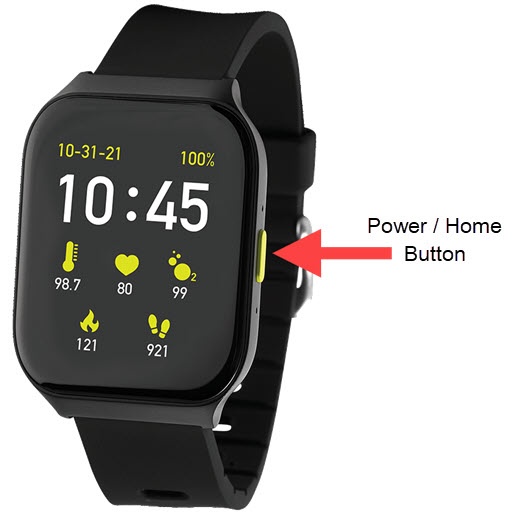
- From the watch screen, press thePower / Home button.
- Navigate: .
- EnsureWi-Fiis turned on.
- Do any of the following:
- Connect to a available network:
- Tap the desired available Wi-Fi connection.
- Tap one of the following:
- Type on the PhoneIf this option is selected, open the Orbic Wear app on your smartphone and when prompted enter the Wi-Fi password, then tapOKto connect.
- Type on the Watch
- Enter the Password (if required) on the digital keyboard on the watch then tap theDone icon
.
- TapConnect.
- Remove a Wi-Fi connection:
- Tap the desired Wi-Fi connection.
- TapIgnore Network.
- From the 'Cleared network....' screen, tapClearto confirm.To cancel, tapCancel.