Verizon Router Manually Connect to Wi-Fi
Verizon Router
Manually Connect to Wi-FiSetting up the Wi-Fi client connection on your 5G Home Router lets you get your phones, laptops and smart TVs online quickly so you can start streaming and browsing.
Steps
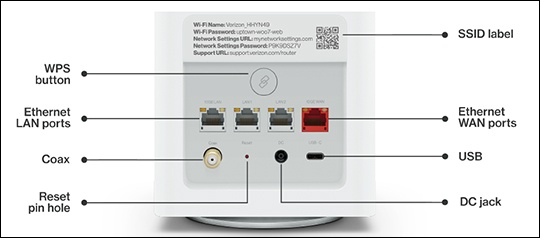
- Locate the default Wi-Fi Name (SSID) and Wi-Fi password printed on the SSID label on the back of the device.The label also contains a QR code that you can scan with your smartphone, tablet or other camera-equipped Wi-Fi device to allow you to automatically connect your device to your Wi-Fi network without typing a password (requires a QR code reading app with support for Wi-Fi QR codes).
- From the Wi-Fi settings menu of the device you want to connect (client device), select your router from the list of available networks then enter the router password.
- If needed, select the applicable operating system (for the client device) then follow the instructions provided (the default encryption type is WPA2):