Orbic AirSurf 5G - Common Camera Settings
Here's info on common camera settings (e.g., flash, timer, front / rear camera, etc.) for your AirSurf 5G laptop.
If you need to adjust common camera settings (e.g., timer, HDR, etc.) for your Orbic® AirSurf 5G™, follow these step-by-step instructions.
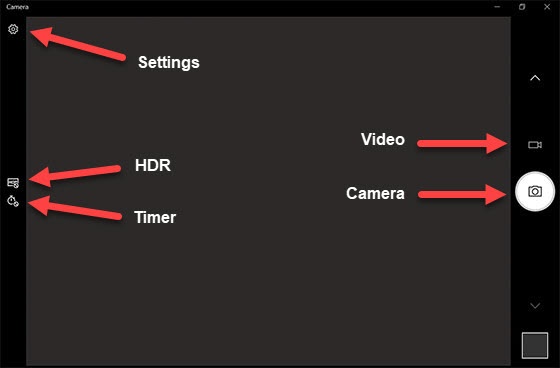
Settings
- From the Home screen, tap or click theStart key
(lower-left).
- Tap or clickCamera.
- Tap or click theSettings icon.
- Tap the following to turn on or off:
- Pro mode
- Time lapse
- From the 'Photos' section, tap or clickPhoto qualitythen select the preferred option.
- From the 'Videos' section, tap or clickVideo qualitythen select the preferred option
Timer
- From the Home screen, tap or click theStart key
- Tap or clickCamera.
- Tap or clickTimer.
- Select an option:
- Off
- 2 seconds
- 5 seconds
- 10 seconds

HDR
HDR (High Dynamic Range) - Combines photos or videos taken at different exposures for one optimal photo or video.
- From the Home screen, tap or click theStart key
- Tap or clickCamera.
- Tap or clickHDR.
- Select an option:
- HDR pro
- Off
