Orbic AirSurf 5G - Touch Screen Settings
Here's how to adjust the touch screen sensitivity for your AirSurf 5G laptop.
- The capacitive touch screen on your Orbic® AirSurf 5G™ requires your skin to touch the screen. If you are using a screen protector your screen may not work as designed.
- Not all gestures are available on all apps.
Refer to the following for frequently used gestures:
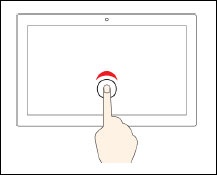
- Tap once to perform the following:
- From the Start menu: Open an app or item.
- From the desktop: Select an app or item.
- In an open app: Perform an action such as Copy, Save and Delete, depending on the app.
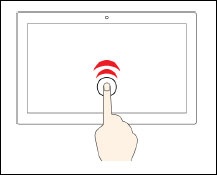
- Tap twice quickly: Opens an app or item from the desktop.
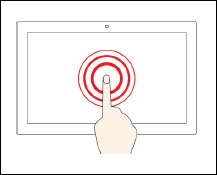
- Tap and hold: Opens a shortcut menu.
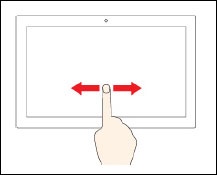
- Slide: Scroll through items, such as lists, pages and photos.
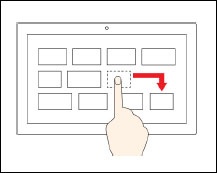
- Drag: Move an object to the location you want.
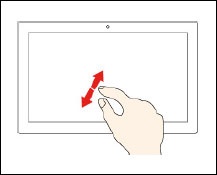
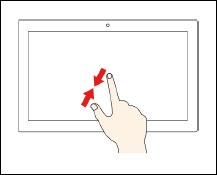
- Zoom: Pinch fingers together or apart to zoom in or out of images.
- Zoom in
- Zoom Out
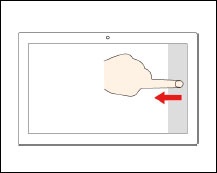
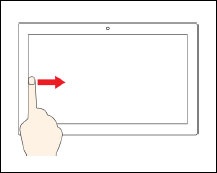
- Swipe: Starting from the right/left edge, swipe inwards toward the center.
- Swipe from the right to open the action center to see your notifications and quick actions.
- Swipe from the left to view all your open windows in task view.
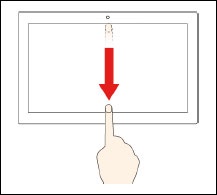
- Swipe down to perform the following actions:
- Swipe downwards: Swipe from the top edge (for full-screen apps or when your computer is in tablet mode) to show a hidden title bar.
- Swipe in: Swipe from the top edge to the bottom edge (when your computer is in tablet mode) to close the current app.