Orbic Speed 5G - View Network Name and Password
Here's how to view the Wi-Fi name and passwords for your Orbic Speed 5G.
- Wi-Fi Name / SSID: The name that identifies the wireless network.
- Wi-Fi Password: The password that's needed to connect to the Wi-Fi network.
- Admin Password: The password that's needed to access the Administration Web Interface and make changes to default Wi-Fi settings.
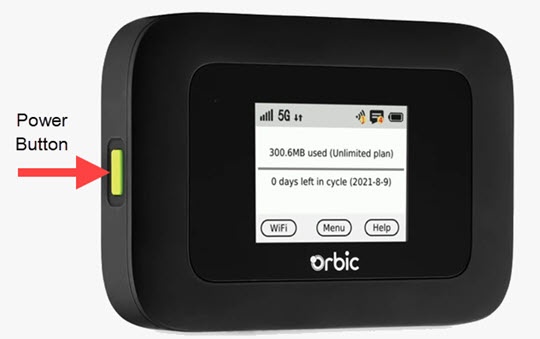
Via Device
- Press thePower button(front of device) on your Verizon Orbic® Speed 5G™ to turn on the display.
- TapWiFi(on the device screen).
- TapWi-Fi Name/Password
- View the following:To view the
- Wi-Fi Name (SSID)
- PasswordBy default, the Wi-Fi password and admin page password are the same.
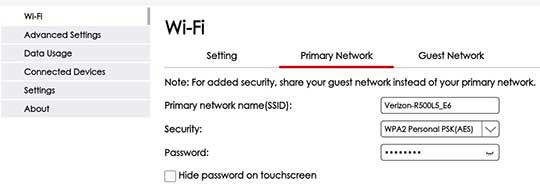
Via Admin Web Interface
- Access the Admin Web Interface.
- From the top menu, clickConfiguration.
- From the left menu, navigate: .
- View the 'Wi-Fi Name (SSID)' and 'Password'.