Orbic Speed 5G - Change Network Mode
If your your Orbic® Speed 5G™ drops data connections due to being near a network border, locking onto a specific network can help; however, roaming charges may apply.
Changing advanced settings may be harmful to the stability, performance, and security of your Orbic Speed 5G. Contact your local IT admin before altering advanced settings.
Via Device Display
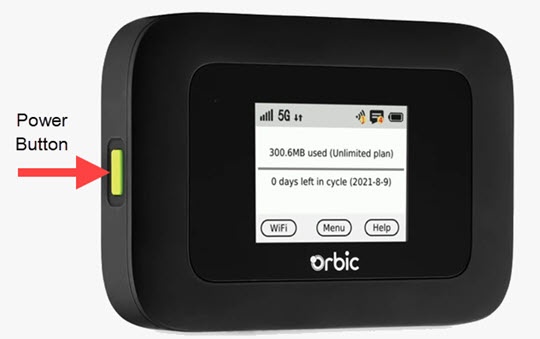
- Press thePower buttonto turn on the display.
- TapMenuon the device screen.
- From the 'Menu' screen, swipe the screen to the left or right to view the additional menu options and tapSettings.
- TapNetwork Settings.If applicable, swipe the screen to the left or right to view more options.
- View the setting.Auto (5G Prefer) is the default option. These settings can only be adjusted via the Admin Web Interface.
Via Admin Web Interface
- Access the Admin Web Interface.
- From the top menu, clickConfiguration.
- From the left menu, navigate: .
- Click the menu dropdown next to 'Network Mode' then select from the following options:
- Auto (5G Prefer)
- 4G
- ClickSave Changes.
