Orbic Chromebook - Add a User Account
Here's how to add a user profile so multiple people can use your Orbic Chromebook.
If you need to add a user account to your Orbic® Chromebook®, follow these step-by-step instructions.
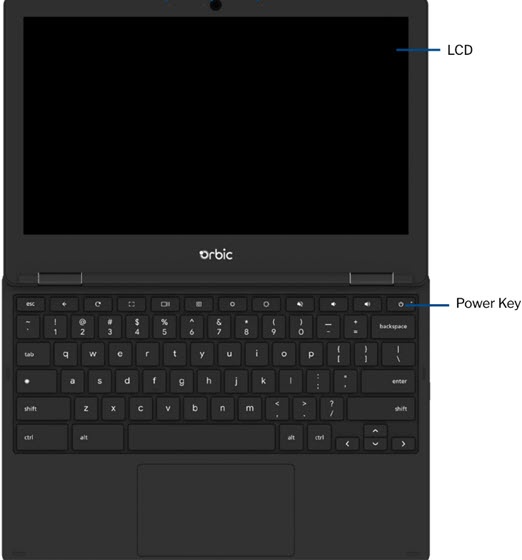
- Press and hold thePower keyuntil the options screen appears..
- ClickSign out.
- ClickAdd Person.
- Click to choose an option, then clickNext:
- You - Add a full user account
- A child - Set up restricted access for a child.
- Enter your email address or phone number into the 'Email or phone' field then clickNext.
- Enter your password into the 'Password' field then clickNext.If presented, follow the steps for Google™ 2-Step Verification.
- From the 'Sync your Chromebook' screen, clickAccept and continueto sync your other Chrome™ OS devices.
- Review the Google Play Terms of Service, accept any of the following, then clickAccept:
- Back up to Google Drive
- Use location
- Click on any of the popular apps to install then clickDone.You can chooseDo it laterto skip this step until setup is complete.
- ClickI agreeto use Google Assistant on your Chromebook.ClickNo thanksto skip this step.
- ClickI agreeto access Google Assistant with 'Hey Google'.ClickNo thanksto skip this step.
- From the 'Connect to your phone' screen, clickAccept & continue.clickNo thanksto connect your phone later.
- From the 'You are all set!' screen clickGet started(lower-right) to complete setup.