Orbic Chromebook - Adjust Brightness / Display Settings
Here's how to adjust screen brightness and other display settings (e.g., Screen saver, Sleep, Display size, etc.) for your Orbic Chromebook.
Adjust Brightness Settings
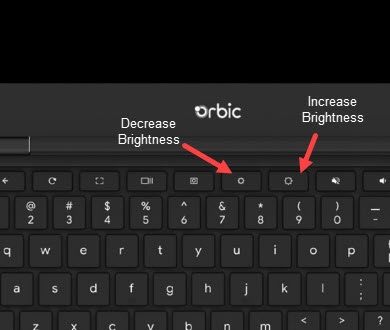
- From the keyboard Orbic® Chromebook®, press either the 'Decrease Brightness button' or the 'Increase Brightness button' until the preferred brightness is achieved.
Adjust Display / Font Settings
- Navigate: .
- From the Device section, clickDisplays.
- From the Built-in display section, drag theDisplay size sliderleft or right to achieve the desired font size.
- Click theOrientation dropdown icon
then select one of the following:
- 0° (Default)
- 90°
- 180°
- 270°
- ClickNight Lightto turn on or off.
- Drag theColor Temperature sliderleft or right to achieve the preferred nighttime color.Night Light must be turned on for this to be accessible.
- To choose when Night Light is on, tap theSchedule dropdown iconthen select one of the following:
- Never
- Sunset to Sunrise
- Custom