One Talk VZP59 IP Desk Phone Call Recording via USB Storage
One Talk VZP59 IP Desk Phone
Call Recording via USB StorageYour One Talk VZP59 IP desk phone can record audio during active two-party or conference calls using the phone's internal memory or a USB flash drive.
Before you begin
Up to 12 hours of audio can be recorded in one file.
By default, recorded audio files are saved to the internal SD card but can be saved to a USB flash drive if one is connected to a USB port on the phone.
Recorded files are saved first to the USB flash drive if one is connected, then to the internal SD card as storage space fills up.
Recording can only begin during an active call.
If on a conference call, all conference participants are recorded. If one of the participants holds the call, only that participant is recorded. If a conference call is placed on hold, the recording is paused; recording resumes when the conference call is resumed.
Steps
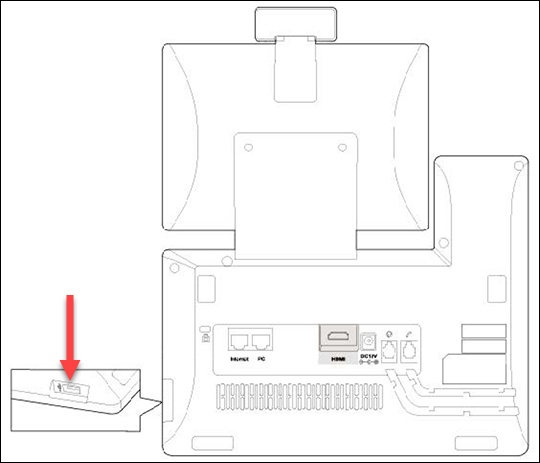
- If using a USB flash drive, connect it to one of the available USB ports.View from the back of the phone:
- To record call audio:
- While on a call, swipe the soft key area left then tapRecord.
- You can set a mark by tapping the redFlag iconwhile recording.
- To stop recording, swipe the soft key area left then tapStop.
- To play recorded calls on the desk phone:Recorded calls are saved in .AAC format and can be played back by plugging the USB drive into a computer.
- Swipe left to go to the second idle screen.
- TapRecorderto launch the Recorder application.
- Tap thelay iconnext to the recording you want to play.
- To view the used and remaining space on your USB drive or internal storage, swipe left to go to the second idle screen then navigate: .