One Talk VZP59 IP Desk Phone Activate / Set Up Device
One Talk VZP59 IP Desk Phone
Activate / Set Up DeviceActivate your One Talk VZP59 IP desk phone to get started. This ensures you can make calls, send messages and connect to your company network.
Before you begin
Activation requires a valid US address for E911 functionality.
Wi-Fi Calls always originate in the U.S., even when you're outside of the U.S.
- Calls to U.S. numbers are not billed (except for 411 or other premium calls).
- Calls to international numbers are billed according to your international long distance plan.
A soft reset is needed on the desk phone when a new endpoint is added to the One Talk MDN.
Steps
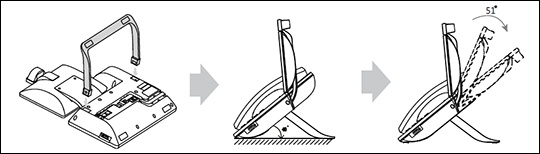
- Attach the desk mount stand.
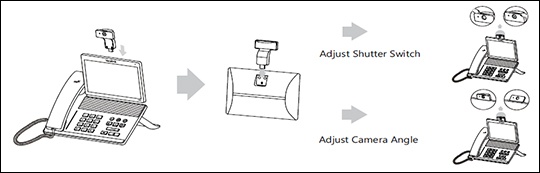
- Insert the camera.If necessary, remove the rubber plugs first.
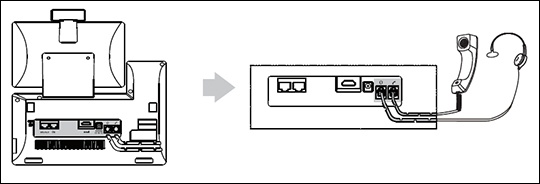
- Connect the headset.The wireless headset adapter and headset are sold separately.
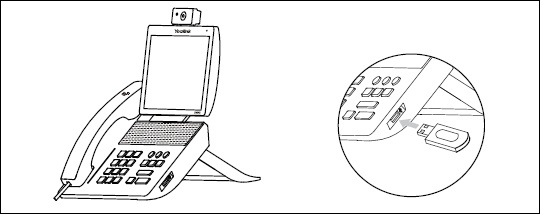
- If preferred, connect USB devices.Different USB devices can be used, such as a USB flash drive, USB headset, etc.
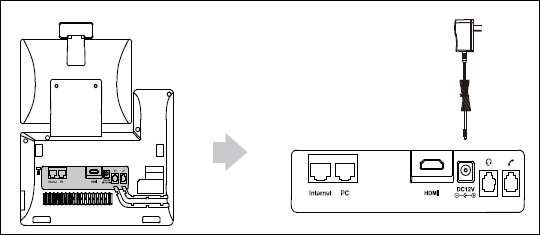
- Connect the power source.The AC adapter is optional; the phone can also run on Power over Ethernet (PoE).
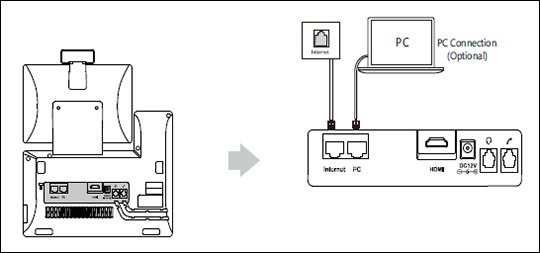
- Connect to the network by selecting one of the following options:Contact your IT administrator before selecting the network connectivity option.
- Connect to a wired network.
- Connect to a wireless network:
- From the desk phone display, swipe left or right to go to the second idle screen.
- Navigate: .
- Tap the desired network to connect to it.If the network you want to connect to isn't available, tap the3-dot Options iconthen tapScanto search for available networks.
- If the network is secure, enter its password then tapConnect.If necessary, tap (check)Show advanced optionsto configure the HTTP proxy for the Browser application.
- Wait for the phone to finish the initialization process.The process may take up to 15 minutes.
- After successful activation, the 911 notification screen displays. TapOK.