5G Home Modem Activate / Set Up Device
5G Home Modem
Activate / Set Up DeviceActivate your 5G Home Modem to get started. This ensures you can connect to the internet.
Before you begin
The 5G Home Modem is installed on the premises, connected to the wall coax and electrical outlets and connects via Ethernet to the home router.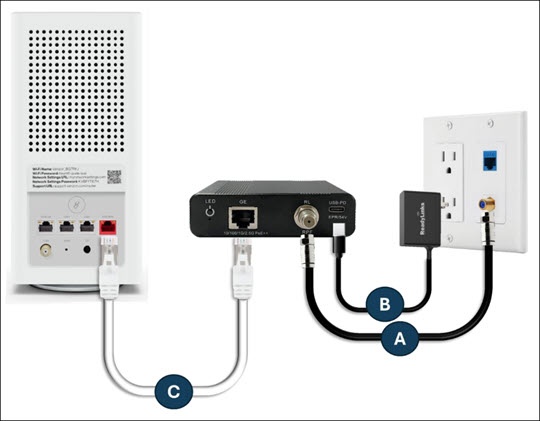
Steps
- Connect a coax cable from the coax port on the 5G Modem to a coax outlet.
- Connect the power cord to the 5G Modem then to an electrical outlet.
- Connect the Ethernet cable from the router WAN port to the GE Ethernet port on the 5G Modem.Usage and PoE LEDs may differ depending on the power utilization of the system.Usage and PoE LEDs may differ depending on the power utilization of the system.
- Connect the router to the Internet Gateway by plugging the Ethernet cable into the WAN port.
- Connect the power adapter to the router and plug it into a power outlet.The router's blinking white light means it’s starting up. The light may fluctuate between red and white for up to 5 minutes; don’t unplug the router. Use the Verizon Home app for support.
