Port Forwarding - Verizon Jetpack® 4G LTE Mobile Hotspot MiFi® 4620L
Here's how to open blocked ports on your MiFi 4620L to allow additional access.
- Changing advanced settings may be harmful to the stability, performance and security of the Jetpack. Contact your local IT administrator prior to altering any of these settings.
- Port Forwarding is an advanced feature. For additional assistance, contact your IT support. To obtain settings, contact the app manufacturer.
- Access the Admin Web Interface.Launch a web browser then navigate to 192.168.1.1.Refer to connecting to a Wi-Fi network for additional assistance. Select the appropriate option:
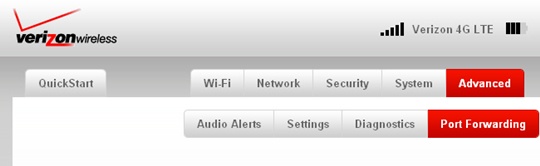
- From the Advanced tab, clickPort Forwarding.
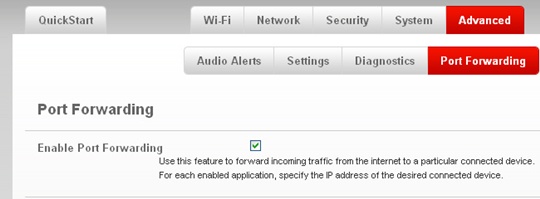
- From the Port Forwarding tab, click theEnable Port Forwarding checkbox.Enabled when a checkmark is present.If disabling Port Forwarding, skip to step 5.
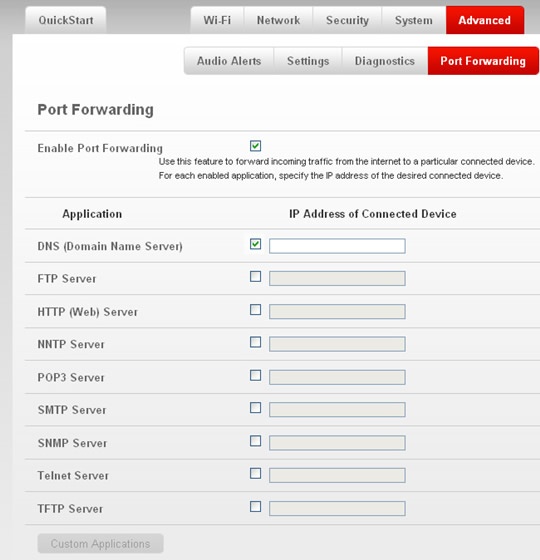
- Select an app then enter the IP address for the device.Selected when a checkmark is present.
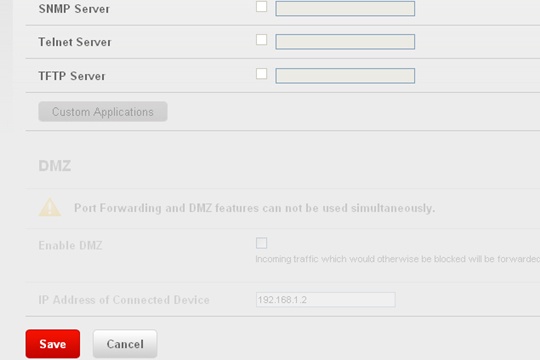
- ClickSave(lower-left).