Configure Broadcast Settings - Mobile / Wi-Fi Hotspot - Verizon Jetpack® 4G LTE Mobile Hotspot - AC791L
Here's how to check settings if you're having issues connecting to the Mobile Hotspot on your Verizon Jetpack AC791L.
If you are experiencing connectivity issues with your Mobile Hotspot or your device isn't found, check out the steps below.
- To avoid interference with other Wi-Fi networks, try using non-overlapping channels (i.e., 1, 6, or 11).
- If you only need to change the Wi-Fi profile (e.g., 2.4 GHz, 5 GHz, Guest, etc.) this can be done from the device's display menu by navigating: .Use the navigation arrows to scroll through options and the checkmark to select.
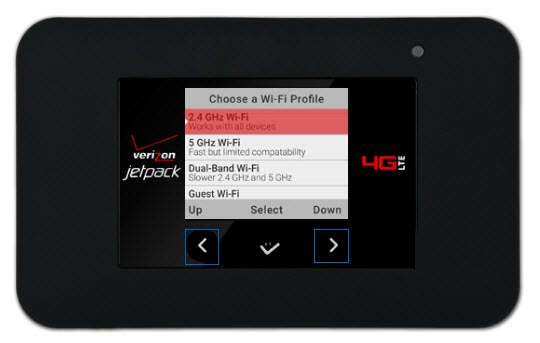
- Access the Admin Web Interface.
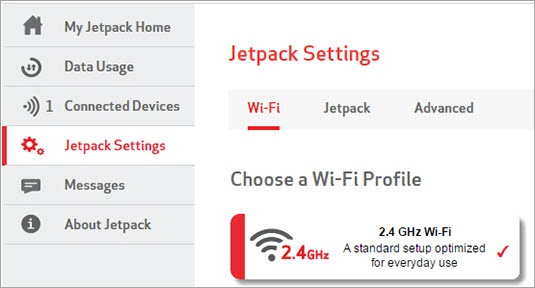
- From the left menu, navigate:.
- From the Wi-Fi tab, click2.4 GHz Wi-Fi.You cannot adjust the 5 GHz Band Settings; they are set to Automatic only.
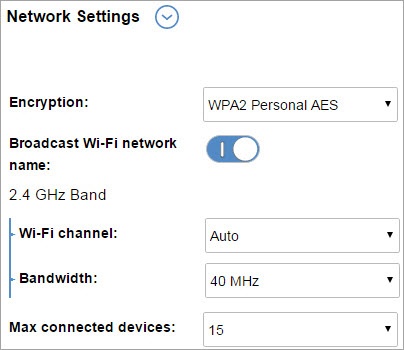
- Click theblue arrownext to Network Settings to display more options.require scrolling to the bottom of the page.
- Adjust the Wi-Fi channel as desired.
- Auto (default setting) is recommended.
- Select an alternate channel (1-11).
- ClickSave(located at the bottom).The save option only appears once a change is made.
Check out these FAQs for additional support on Mobile Hotspot.