Create Auto-Reply to a Sender Code - Enterprise Messaging (EMAG)
Here's how to create an auto-reply to a sender code with Enterprise Messaging.
There cannot be overlapping/conflicting auto-replies. For example: If an auto-reply is already saved to send “During Business Hours”, and you are trying to save an new auto-reply to “Always” be sent, you must first go back and deactivate the initial auto-reply.
- Sign in to Enterprise Messaging.
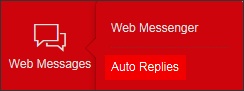
- From the left navigation menu hover over 'Web Messages' then clickAuto Replies.To view the navigation menu, click thered tab
.
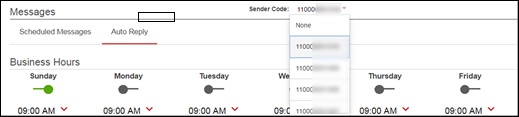
- Click theSender Code dropdownthen select the appropriate Sender Code.Each sender code can only have 5 auto replies.
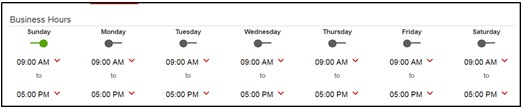
- To set the appropriate business hours:
- Click the toggles to establish which days are office days:
- Green toggle is in-office
- Black toggle is out-of-office
- Click the dropdown times to determine the office-hours’ time for that particular day.
- ClickNew Auto Reply(located at the right).
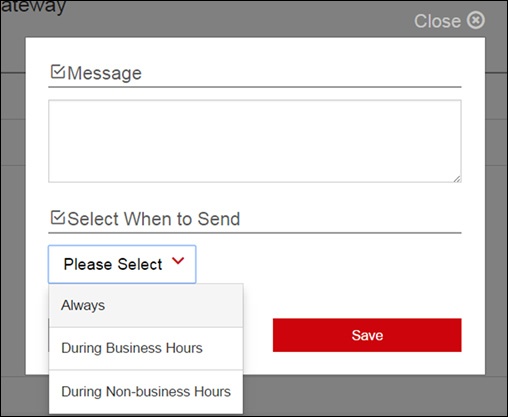
- Enter the auto-reply text message to be sent.
- Select when to send the auto-reply thenclickSave.Up to five auto-replies are allowed to be saved.
- Always
- During Business Hours
- During Non-Business Hours