Create Survey - Enterprise Messaging (EMAG)
Here's how to create and schedule a survey with Enterprise Messaging.
- Sign in to Enterprise Messaging.
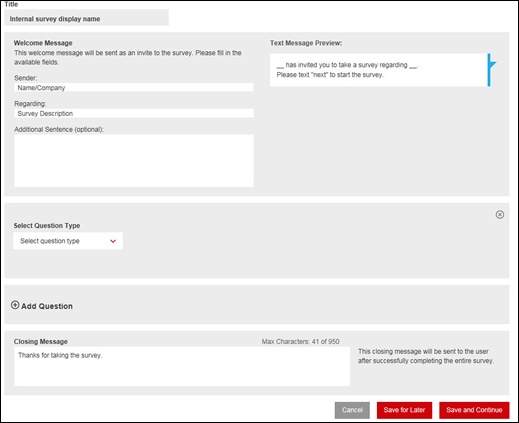
- From the left navigation menu hover over 'Surveys' then clickCreate.To view the navigation menu, click thered tab
.
- Enter the appropriate information:
- Title
- Sender Name
- Subject of the survey
- If needed, enter the other information into the 'additional sentence (optional) field.All information entered into the above fields will auto populate in the text message preview box on the right. Message summary is the first text message sent to the customer. Each subsequent question of the Survey will be sent as a separate text message?
- Select the appropriate question type:
- Multiple choice
- Open ended
- True or False
- Interval Scale
- Ordinal Scale
- Ratio Scale
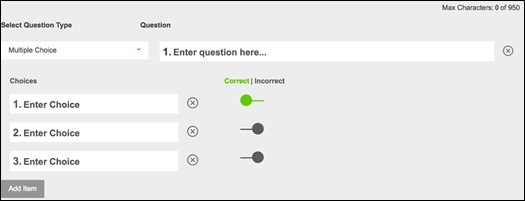
- Enter the answers.Recipient answers the question via reply to the message.The following image is for informational purpose only.
- If additional questions are required, clickAdd Questionthen repeat steps 3-5.
- To use the survey in future, clickSave for Later.Saved surveys are viewable under the “Manage” screen.
- To send the survey now, clickSave and Continue.
- Select sender id.Surveys use a separate list of available sender IDs apart from the Web Messenger.
- Choose recipients from the address book on the left or manually enter them into the field then clickSend.
- To schedule a survey for future date:
- Enter the start date & time, end date & time and time zone.
- ClickSchedule.