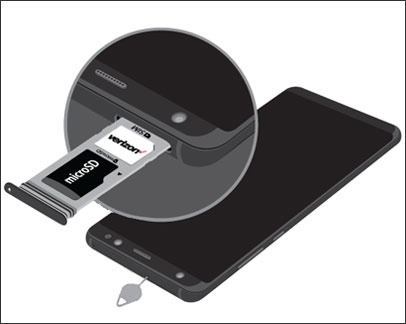
Samsung Galaxy S8 / S8+ - Insert or Remove SD / Memory Card
Here's how to insert or remove an SD / memory card for your Galaxy S8 / S8+
The Samsung Galaxy S8 / S8+ supports microSD memory cards which can be purchased from any Verizon store or online.
- Ensure the device is powered off.
- From the top of the device, insert the eject tool (from the original box) into the card slot.If the eject tool isn't available, use a paper clip.The tray should slide out.
- Do one of the following:
- Insert SD / memory cardWith the gold contacts facing down, insert the SD / memory card.
- Remove SD / memory cardLift the SD / memory card from the tray.
- Close the SD / memory card tray.