Arlo Go Activate / Set Up Device
Arlo Go
Activate / Set Up DeviceGet your security camera up and running to start monitoring your space. Quickly activate and set up your Arlo Go by syncing it with your smartphone or computer.
Before you begin
To set up your camera, you need:
- an active SIM card inserted into the camera.
- access to a computer or smartphone with Internet access.
For smartphones, the Arlo app is needed and iOS 8 or later or Android 4.1 or later.
For computers, supported browers are:
- Internet Explorer 10 or later
- Microsoft Edge
- Firefox 3.5 or later
- Safari 3 or later
- Chrome (latest version)
Steps
- Insert the battery.Installing the battery is recommended even if the camera is connected to a power source.
- Open the Arlo app on your smartphone or navigate to the admin site via a browser.The website URL is: https://arlo.netgear.com/
- Do one of the following:
- If setting up a new Arlo account, tap or clickNew to Arlo.
- If you already have an Arlo account, enter your credentials to sign in then tap or clickAdd Device.
- Tap or clickArlo Go.
- To confirm SIM activation, tap or clickContinue.
- From the APN Info screen, tap or clickSkip This Step.
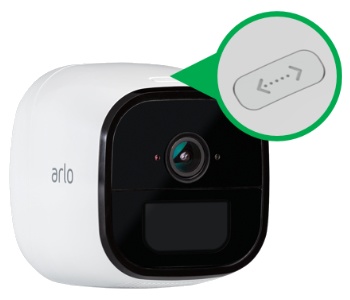
- Press and hold the Sync button for 2 seconds then release.
- From the How To Sync screen, tap or clickContinue.
- Aim your camera lens 4 to 8 inches in front of the QR code displayed on the screen until a chime is heard.
- If you heard the chime sound, tap or clickYes, I heard a chime.Allow several seconds for the app or website to discover your camera and display the Claim Your Device screen.If the chime sound wasn't heard, tap or clickBackthen repeat steps 7 through 10.
- From the Claim Your Device screen, enter the location, desired camera name and time zone then tap or clickNext.
- Enter your account settings then tap or clickNext.
- From the Select a Plan screen, choose the desired service plan.