Kyocera DuraXV LTE - Insert or Remove SD / Memory Card
Here's how to insert or remove an SD / memory card for your DuraXV LTE.
The DuraXV LTE supports microSD memory cards which can be purchased from any Verizon store or online.
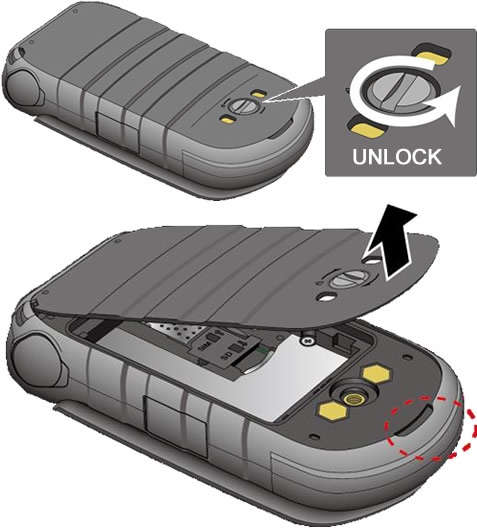
- Unscrew (turn counterclockwise) then remove the battery cover.
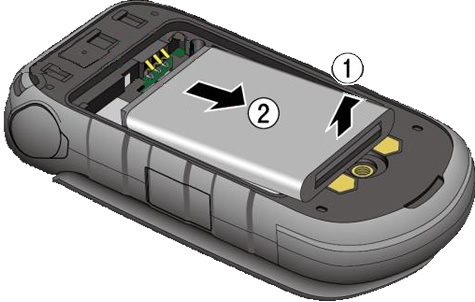
- Lift then remove the battery.
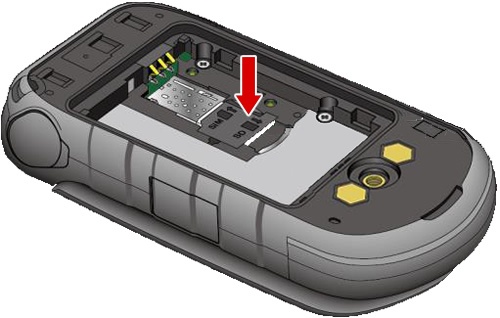
- Lift card protection flap then do one of the following:
- Insert SD / memory cardWith the gold contacts facing down, insert the SD / memory card into the slot.
- Remove SD / memory cardSlide card out from the tray.
- Place the card protection flap back in place.
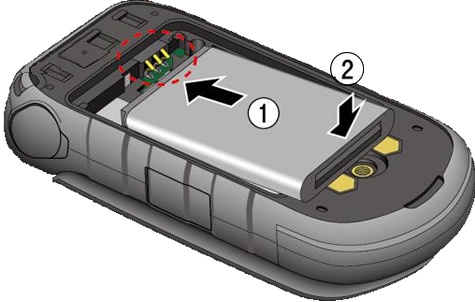
- Insert the battery.Make sure the gold contacts line up then press down gently to secure.
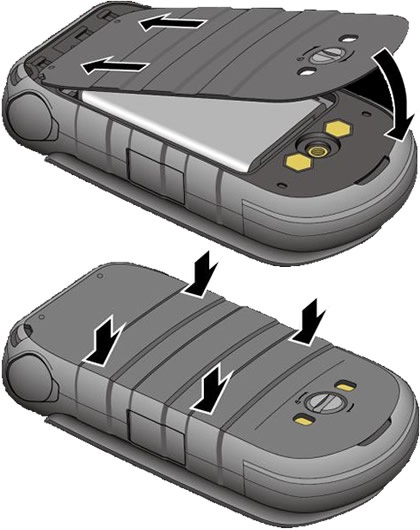
- Replace the back cover over on the back of the phone.Press down along the edges then screw it in place (turn clockwise) to secure.