Kyocera DuraXV LTE - Move Pictures / Videos to SD / Memory Card
Here's how to move pictures and videos from the DuraXV LTE memory to the SD / Memory Card.
Move Single Picture or Video
- From the main screen, selectMenu.Utilize the 5-way navigation pad to highlight and the center button to select.
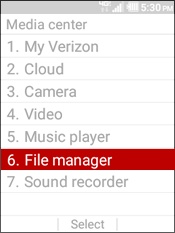
- SelectMedia Center.
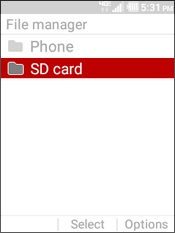
- SelectFile manager.
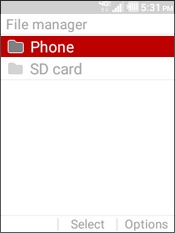
- SelectPhone.
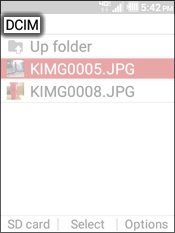
- Navigate to the picture(s) or video(s) to be transferred (e.g., DCIM, Pictures, etc.).
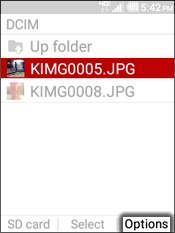
- Highlight the picture or video to be moved then press theright soft keyto choose Options.
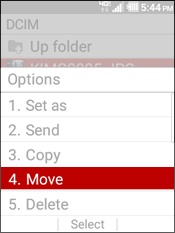
- SelectMove.
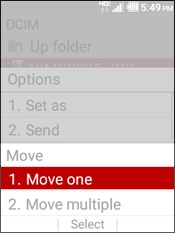
- SelectMove one.
- Press theCLR buttonas needed to return to the appropriate menu then selectSD / Memory Card.
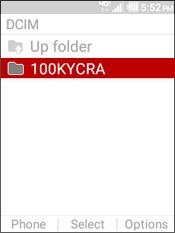
- Navigate to the folder the picture or video is to be moved to.
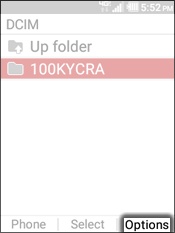
- Press theright soft keyto choose Options.
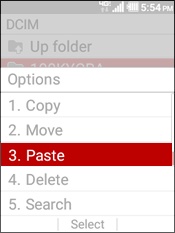
- SelectPaste.

Move Multiple Pictures or Videos
- From the main screen, selectMenu.Utilize the 5-way navigation pad to highlight and the center button to select.
- SelectMedia Center.
- SelectFile manager.
- SelectPhone.
- Navigate to the picture(s) or video(s) to be transferred (e.g., DCIM, Pictures, etc.).
- Highlight a picture or video then press theright soft keyto choose Options.
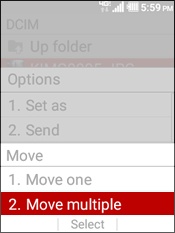
- SelectMove.
- SelectMove multiple.
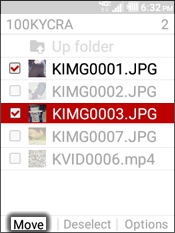
- Select the pictures/videos to be moved then press theleft soft keyto choose Move.A picture or video is selected when a check mark is present.
- Press theCLR buttonas needed to return to the appropriate menu then selectSD / Memory Card.
- Navigate to the folder the pictures or videos are to be moved to.
- Press theright soft keyto choose Options.
- SelectPaste.