Kyocera DuraXV LTE - Set Up Phone Lock
Here's how to set a lock on your DuraXV LTE.
The Phone Lock feature helps prevent unauthorized use of the device by disabling outbound data and making calls. The device can still receive calls and place emergency 911 calls.
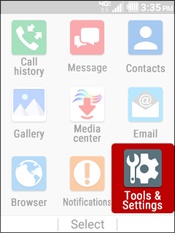
- From the main screen, selectMenu.Utilize the 5-way navigation pad to highlight and the center button to select.
- SelectTools & Settings.
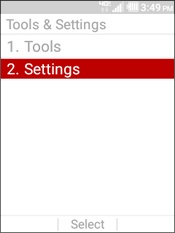
- SelectSettings.
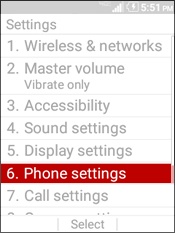
- SelectPhone Settings.
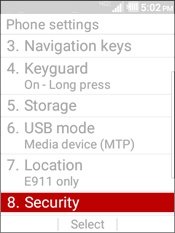
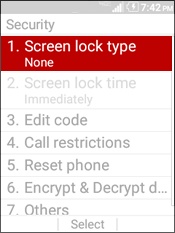
- SelectSecurity.
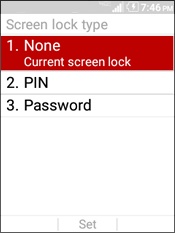
- SelectScreen lock type.
- Select an option.
- None
- SelectSet.
- PIN
- Enter a PIN then selectOK.The PIN must be at least 4 digits long.
- Re-enter the PIN to confirm then selectOK.
- Password
- Enter a password then selectOK.The password must be at least 4 characters long.
- Re-enter the password to confirm then selectOK.
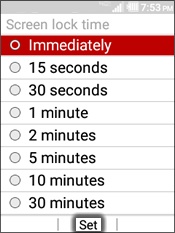
- SelectScreen lock time.This option will be grayed out if the lock type hasn't been set.
- Select an time option (e.g., Immediately, 15 seconds, etc.) then selectSet.