One Talk Portal Configure Busy Lamp Field (BLF)
One Talk Portal
Configure Busy Lamp Field (BLF)To quickly see if a monitored line is busy, idle, or ringing, configure the Busy Lamp Field (BLF). This helps you monitor key users' availability directly from your One Talk desk phone.
Steps
- Sign in to My Business.
- ClickManage Accountfrom the top navigation bar.
- From the Product Portals section, clickOne Talk.
- From the 'I want to' section, clickManage lines and devices.
- If necessary, select the desired group from the dropdown menu then click theDevices tab.
- Click the applicable phone number in the left column.
- From the 'Associated devices' tab, clickView morefrom the desired section (Smartphone, Desk phone, Mobile client) then select the appropriate device.
- From the 'Busy lamp field' section, selectConfigure Line(s) to Monitor.
- Select the line(s) then clickSave.
- To enable monitoring on the desk phone, from the 'Associated devices' tab, click theEnable monitoring switchto turn on.To see compatible equipment, clickSee phone model recommendationsto the left of the Configure Line(s) to Monitor button.
Desk Phone - Line Status Indicators
Once enabled, the desk phone needs to reboot to pick up the configuration change. The reboot is automatic.
Once BLF is enabled, the desk phone displays line status for monitored lines using different light sequences on the line keys. Below is a description of the line status LEDs:
- Green: Monitored user is idle.
- Steady red: Monitored user is on the phone.
- Blinking red: Monitored user has an incoming call.
Desk Phone - Incoming Call Display
Once BLF is enabled, the desk phone needs to reboot to pick up the configuration change. The reboot is automatic.
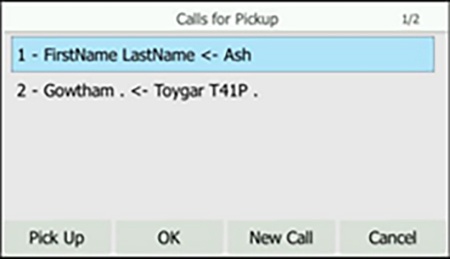
When the monitored line receives an incoming call, the LED flashes on the desk phone as described above; additionally the user is presented with the following:
- Audio: There is also an audible single beep indicating a call on the monitored line.
- Visual indication: Visible on the idle screen and displays the monitored line and Caller ID for the caller.
- The admin monitoring the line has the option to answer the call on behalf of the intended end user. When answering a monitored line, the desk phone displays the FAC code and extension used for directed call pick up with barge-in.