Samsung Galaxy Watch - Set Up as a Standalone Device
Here's how to set up your Galaxy Watch as a standalone device.
- While used with a standalone plan, the Galaxy Watch won't require an Android™ smartphone or Apple® iPhone® to function after initial activation but does require the phone for certain options (e.g., software updates, email, etc.).
- Standalone mode can't be used with Number Share and provides limited functionality.Continue to use in conjunction with a companion smartphone for maximum functionality.
- Ensure the Galaxy Watch has been set up using a QR code with an Android smartphone or Apple iPhone.If you're upgrading or replacing your Galaxy Watch, refer to Replace Existing Device.
- If necessary, tap the watch display to begin.
- From the 'Let's go' screen, swipe up.
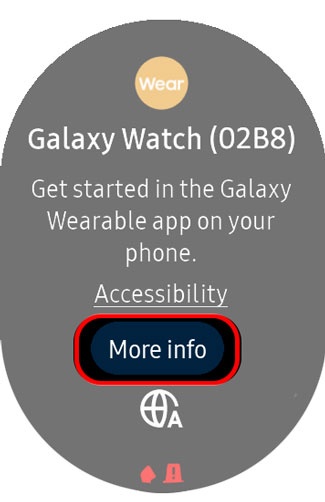
- TapMore info.If a question mark icon
appears in place of 'More info', no mobile network has been registered. Refer to step 1 to add a mobile network.
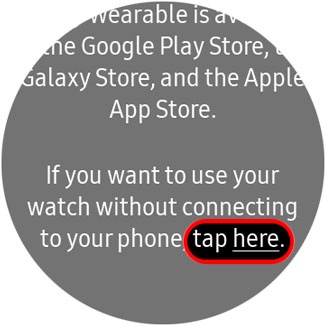
- Scroll to the bottom, then taphere.
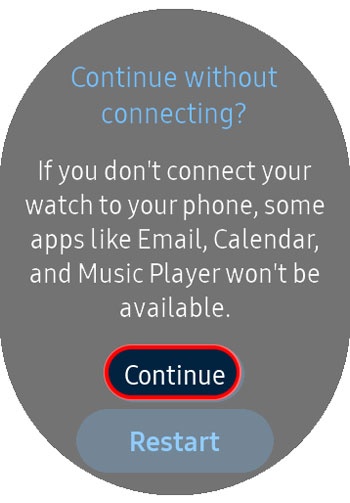
- Review the 'Continue without connecting' notice and chooseContinue.If you select Restart the watch will power off and on then return to the 'Let's go' screen.
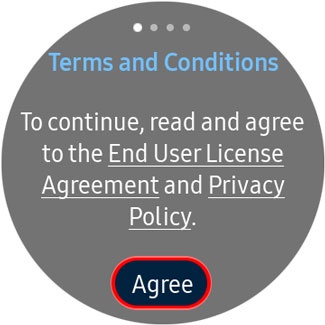
- After reviewing the 'End User License Agreement' and 'Privacy Policy', tapAgree.
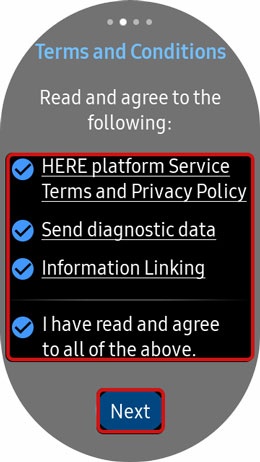
- Read and agree to the Terms and Conditions then tapNext.
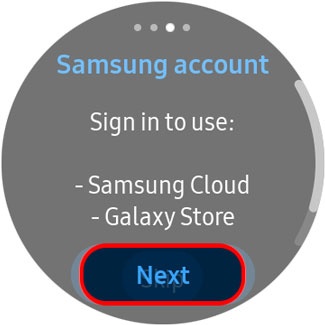
- From the 'Samsung account' screen, tapNext.
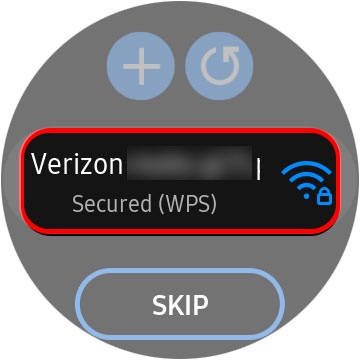
- If prompted, tap the desired Wi-Fi network.If necessary, tap theRefresh icon
to refresh the list of available Wi-Fi networks or the
Add iconto manually add a Wi-Fi network to the watch.
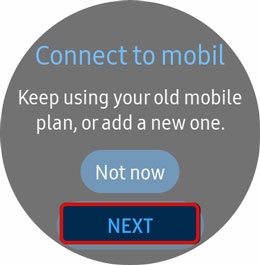
If you choose 'SKIP', you can add a Wi-Fi network after setup is complete. - From the 'Connect to mobile' screen, tapNext.
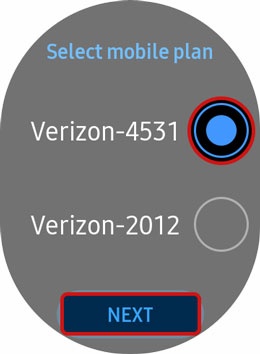
- Select the desired plan then tapNext.
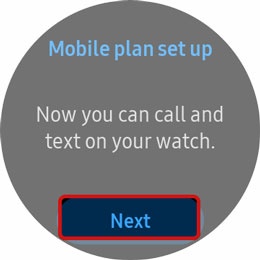
- From the 'Mobile plan set up' screen, tapNext.
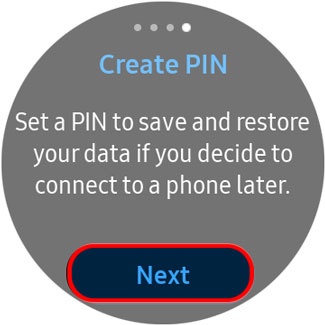
- From the 'Create PIN' screen, tapNext.
- Enter a 4-digit PIN then enter the 4-digit PIN again to confirm.