Verizon GizmoTablet™ - Access Parent Dashboard
Here's how to view app info and manage usage time and content on the GizmoTablet app.
To view app info and manage usage time and content on the GizmoTablet, view this info.
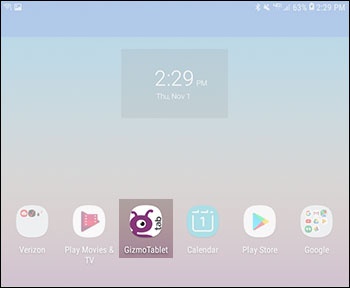
- From a Home screen, tap theGizmoTablet app.If unavailable, swipe up or down from the center of the display to access the apps screen then tap theGizmoTablet app.
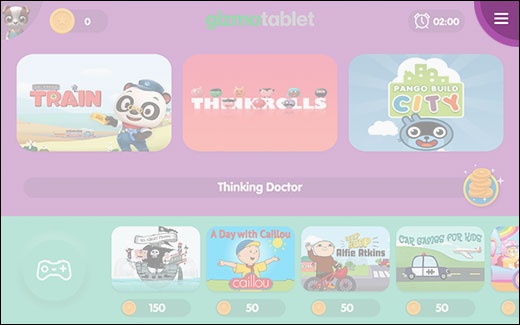
- Tap theMenu icon(located in the upper-right).
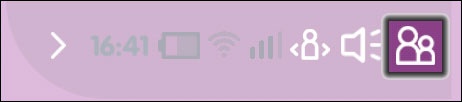
- Tap theParent icon.
- Enter your parent PIN to access parent-only features.If the PIN is forgotten or you would like to change it, refer to Change or Retrieve Parent PIN.
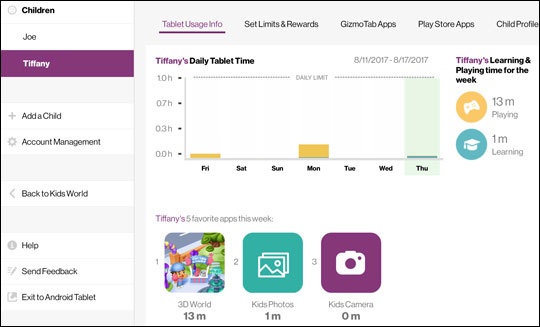
- Tap one of the following 4 tabs (located along the top of the screen) to edit app settings:
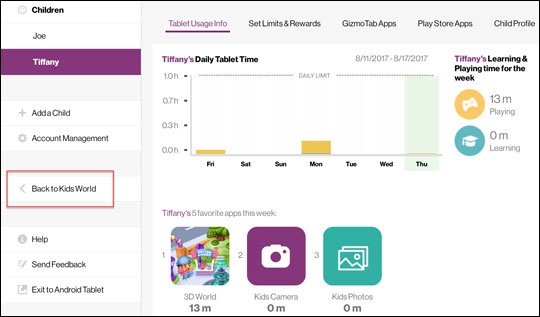
- Tablet Usage InfoView what apps your child has used most and how much time was spent on the different apps.
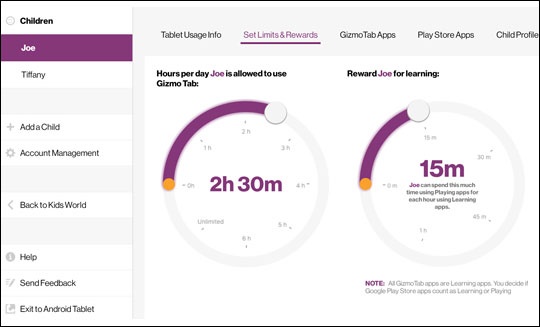
- Set Limits & RewardsSlide the white dot to the preferred location to set usage limits and rewards for completing learning apps.
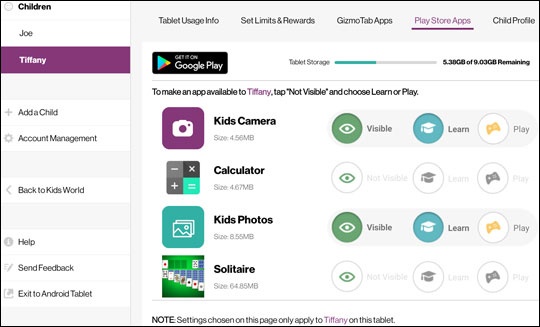
- GizmoTabAppsTap theGizmoTab Appstab to view or uninstall premium learning apps.Tap thePlay Store Appstab then configure as follows:
- TapVisibleto allow or deny access to downloaded Google Play™ Store apps.Access to apps is enabled when Visible icon is green.
- With Visible enabled, tap 'Play' or 'Learn'.
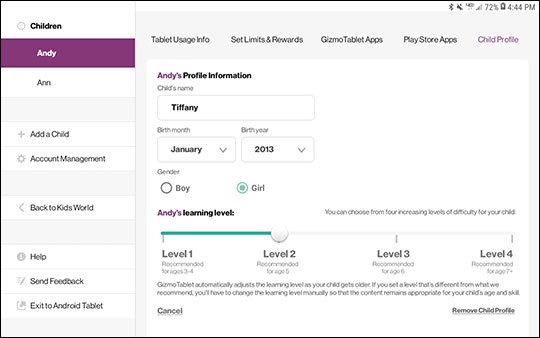
- Child ProfileEdit child's name, birth month and year, and learning level.The 'Parent' profile can also be edited.
- TapBack to Kids Worldto return to the Home screen.You can also tapExit to Android Tabletto leave the child-focused app and use as a standard tablet.