Sonim XP8 - Insert or Remove SD / Memory Card
Here's how to insert or remove an SD / memory card for your Sonim XP8.
The Sonim XP8® supports a microSD memory card which can be purchased from any Verizon store or online.
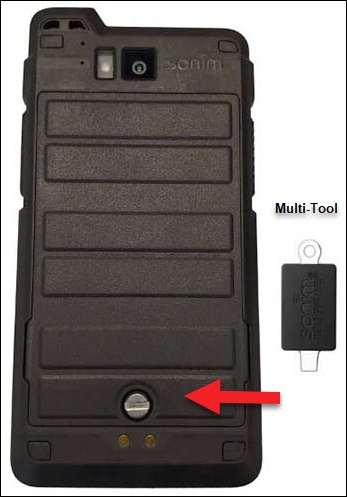
- Remove the battery cover.Use the provided tool to remove the screw then carefully detach the cover.
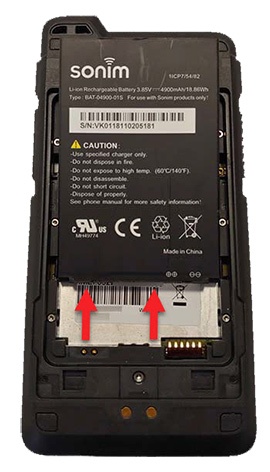
- From the notch in the upper edge of the battery compartment, lift then remove the battery.
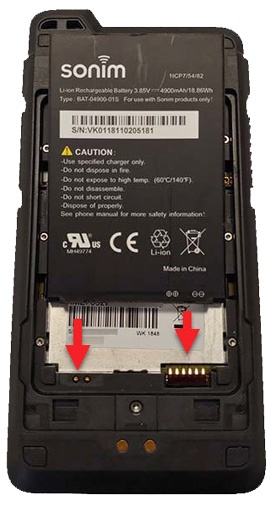
- Unlock the SD / memory card cover then do one of the following:Press down then slide the cover to the open position.
- Insert SD / memory cardInsert the SD / memory card into the memory card slot. Ensure the gold contacts on the card align with the connectors on the device.
- Remove SD / memory cardRemove the SD / memory card then lock the memory card cover.
- Align the gold battery contacts with the contacts in the battery compartment then gently press the battery into place.
- Replace the battery cover.Use the provided tool to re-insert and tighten the screw firmly.