Kazuna eTalk - Insert or Remove SD / Memory Card
Here's how to insert or remove an SD / Memory Card for your eTalk.
The Kazuna eTalk™ supports microSD memory cards which can be purchased from any Verizon store or online.
- Ensure the device is powered off.
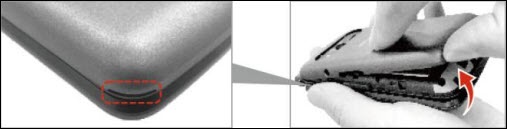
- Remove the battery cover.Insert your fingernail into the cutout located on the lower-left corner of the battery cover to lift and remove the cover.
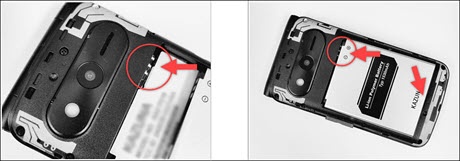
- Use the fingertip cutout at the bottom of the battery compartment to lift the battery out.
- Do one of the following:
- Insert SD / memory cardOpen the SD / memory card slot by sliding it down and lifting, then position the microSD card with the gold contacts facing down.Once inserted, secure the microSD card by closing the slot and sliding it up to lock.
- Remove SD / memory cardOpen the SD / memory card slot by sliding it down and lifting, then remove the microSD card.Once removed, lower the slot and slide up to re-lock.
- Insert the battery.Ensure the gold contacts line up then press down gently to secure.
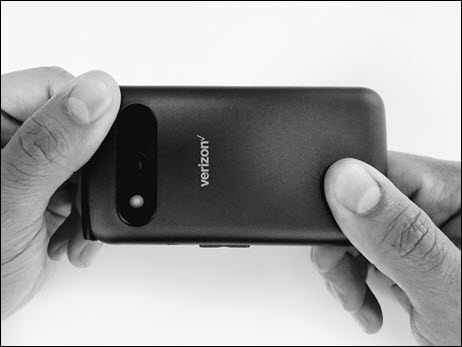
- Attach the battery cover.Press down along the edges to lock into place.