5G Home Router Change Wi-Fi Password
5G Home Router
Change Wi-Fi PasswordChanging your Wi-Fi password periodically prevents unauthorized devices from connecting to your 5G Home Router, similar to updating the password for your online accounts.
Before you begin
This content is for 5G Home Internet. Here's info on Fios Home Internet.
5G Home Internet service is currently offered in specific areas. Here's how to check for 5G coverage availability.
You can also change the Wi-Fi name or password from your My Verizon app.
Steps
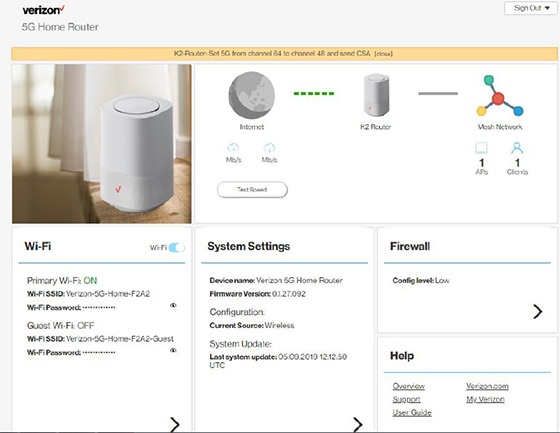
- Sign in to the Admin WebGUI.
- From the Router Home screen, clickWi-Fi.
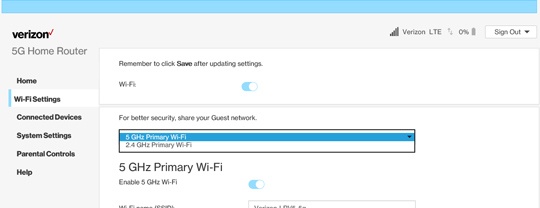
- From Wi-Fi Settings, click thePrimary Wi-Fi Dropdown menuthen select one of the following to modify:
- 2.4GHz Primary Wi-Fi
- 5GHz Primary Wi-Fi
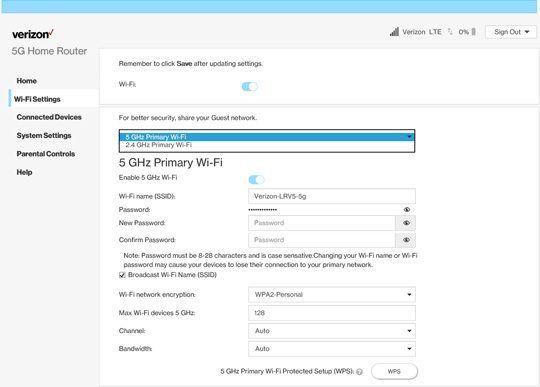
- From the 'Wi-Fi Settings' section, enter the password into the 'New Password' and 'Confirm Password' fields then clickSave.Passwords can contain 8-63 alphanumeric characters and are case-sensitive.The network name (SSID) can also be changed in the 'Wi-Fi name (SSID)' field.If the Wi-Fi password is changed, the network settings on the computer must be updated. For assistance, select the applicable operating system (Macintosh® OS X or Windows®).