Samsung Galaxy Watch Active2 - Set Date and Time
If your Galaxy Watch Active2 shows the incorrect date and / or time, here's how to correct it.
- From your Android™ smartphone or Apple® iPhone® , ensure your Galaxy Watch Active2 software is up to date as the steps below apply to the most recent version.
- Date and time can only be adjusted when the Galaxy Watch Active2 is in Standalone mode. Otherwise, the date and time are pulled from the network or the companion smartphone.
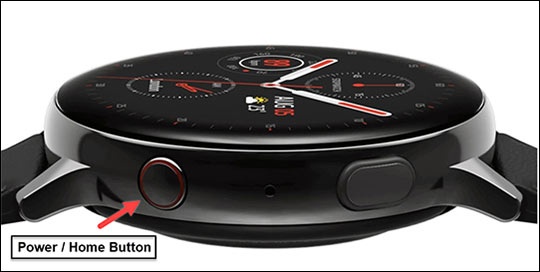
- From the watch screen, press theHome buttonto open the apps screen.
- Double-tap theSettings icon.
- TapGeneral.
- TapDate & time.
- TapSet date.
- Select the month, date and year then tapOKto set.To select, scroll to then tap the appropriate option.
- TapSet time.
- Select the hour, minute and am / pm then tapOKto set.To select, scroll to then tap the appropriate option.
- TapTime zone.
- Select the appropriate option then tapOK.
- TapUse 24-hour formatto turn on or off.On when a blue line is present.