Samsung Galaxy Watch Active2 - Manage Do Not Disturb Settings
Here's how to check 'Do not disturb' settings, if your Galaxy Watch Active2 isn't receiving calls or alerts for texts and email.
From your Android™ smartphone or Apple® iPhone® , ensure your Galaxy Watch Active2 software is up to date as the steps below apply to the most recent version.
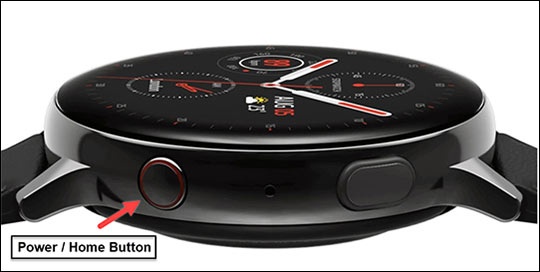
- From the watch screen, press theHome buttonto open the apps screen.
- TapSettings.
- TapAdvanced.
- TapDo not disturb.
- Do one of the following:
- To enable / disable immediately, tapTurn on nowto turn on
or off
.
If turning on, select a duration (e.g., From now on, For 1 hour, for 2 hours, etc.) then tap thecheckmark icon. - To enable / disable at a scheduled time or date:
- TapTurn on as scheduledto turn on or off.
- TapSet schedule.
- Configure the Start time then tapNext.
- Configure the End time then tapNext.
- Select the desired day(s) then tapDone.Selected when in blue.