CTL Chromebook NL71CT-L - Insert or Remove SD / Memory Card
Here's how to insert or remove an SD / memory card for your CTL Chromebook.
The CTL® Chromebook NL71CT-L supports microSD memory cards which can be purchased from any Verizon store or online.
Insert SD / Memory Card
- Ensure the device is powered off.
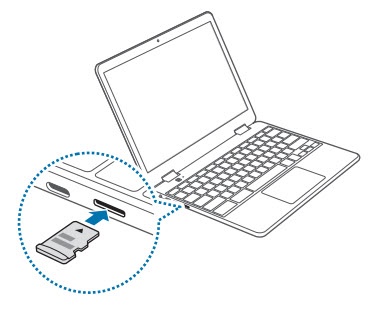
- Gently insert the SD / memory card into the slot on the left edge of the Chromebook as shown.Ensure the gold contacts face down.
- Press in until a click is heard.
Remove SD / Memory Card
Don't remove the SD / memory card with the device powered on before following the 'eject device' procedure below, because it may harm the card and/or the device.
- Navigate:.LauncherSettingsFiles
- Press and holdSD / Memory Card.
- Tap or clickEjectdevice.
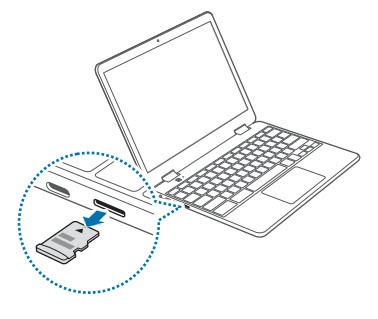
- From the left edge of the device push the card gently until it disengages from the SD / memory card slot then pull it from the slot.