Fossil Gen 5 LTE Smartwatch - Enable / Disable / Modify Screen Lock
Here's how to set up, change or disable the screen lock option (e.g., PIN, pattern, etc.) for your Fossil Gen 5 LTE Smartwatch.
Ensure the software on your Fossil Gen 5 LTE Smartwatch is up to date as the steps below apply to the most recent version.
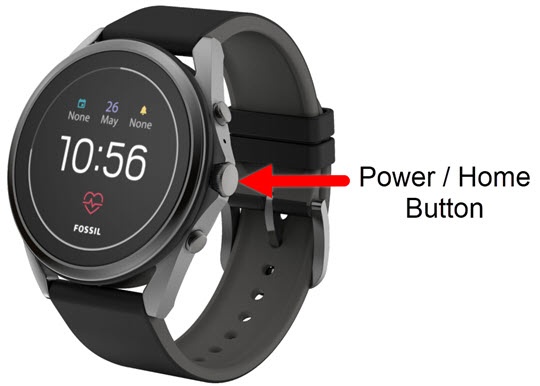
- From the watch screen, press thePower / Home buttonto open the apps screen.
- Navigate: .If prompted, enter the current pattern, PIN or password.
- Do one of the following:
- Set up Pattern
- TapPattern.
- Draw an unlock pattern that connects at least 4 dots.
- Draw the same pattern again to confirm.
- Set up PIN
- TapPIN.
- At the 'Choose your screen lock pin' screen, tap theNext icon
to continue or the
Cancel iconto cancel.
- Enter a numeric PIN at least 4 digits in length, then tap theDone icon
.
- Re-enter the numeric PIN to confirm.
- Set up Password
- TapPassword.
- At the 'Choose your screen lock password' screen, tap theNext iconto continue or theCancel iconto cancel.
- Enter a password at least 4 characters in length, then tap theDone icon.
- Re-enter password to confirm.
- Disable Screen Lock
- TapNone.
- Tap theCheckmark iconto confirm or theCancel iconto cancel.