Stream TV Set Up Device
Stream TV
Set Up DeviceLearn how to easily set up your 2nd-generation Stream TV wirelessly so you can start watching your favorite shows without the cable clutter.
Before you begin
The steps below apply to the 2nd-generation Stream TV which can be identified by the Find My Remote button. If you have the original Stream TV model, refer to Stream TV - Set Up Device. 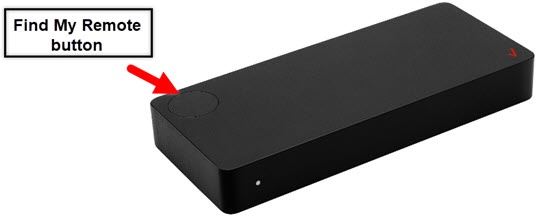
Ensure you have a Wi-Fi connection and a Google™ (Gmail™) account.
Connect your Stream TV to your TV using the HDMI cable, and then connect the power cord to an electrical outlet.
Steps
- Turn on your TV and set it to the correct HDMI input.
- Pair your Stream TV Voice Remote.If your Stream TV Voice Remote is not available, the device must be set up using the Remote Control app.
- SelectBeginto set up your remote to control the volume on your TV then follow the onscreen prompts.Utilize the 5-way navigation pad on the remote to highlight and the center (OK) button to select.
- From the 'Quickly set up your TV with your Android phone?' screen, select an option:
- To use your Android phone to set up your Wi-Fi and Google account:
- SelectContinue.
- On your Android Phone, open the pre-installed Google app.
- Type or say, "Ok Google set up my device".
- Verify the code displayed on your TV matches the code on your phone then tapNext.
- Select the Wi-Fi network your Android phone is connected to.
- Tap the Google account you wish to add to your Stream TV device.
- From the 'Copy to your new device?' screen, tapCopyorCancel.
- From the 'Almost done!' screen, tapClose.
- To setup manually using your remote:
- SelectSkip.
- Select the desired Wi-Fi network.
- Enter the Wi-Fi password and select then select theEnter.
- If necessary, wait for your Stream TV to install system updates.
- If prompted, selectOKfrom the 'A remote control software update is available' screen.
- Sign in to your Verizon account then do one of the following:
- Sign in using your phone or computer:If you're connected to a Wi-Fi network that features host isolation (e.g., guest networks, etc.) sign in using your remote.
- Make sure your device is connected to the same Wi-Fi network as your Stream TV.
- On the phone or computer, open a web browser and go to https://stream.verizon.com/activate.If using a smartphone, scan the QR code shown on the TV screen with a QR code reader.
- Enter the code shown on your TV screen on the website where prompted.
- If prompted, enter your My Verizon User ID or mobile number and Password, then selectSign In.
- Sign in using your remote:
- SelectUse remote instead.
- Enter your My Verizon User ID or mobile number then selectEnter.
- Enter your My Verizon password then selectEnter.
- If prompted, enter the answer to your secret question then selectContinue.
- Follow the prompts to download the app if desired then selectDismiss.
- Review the Terms of Service, End user license agreement, and Privacy policy then selectAccept all.
- Select the desired name then selectContinue.
- Review the 'Get more from your Stream TV with Google' screen selectContinue.
- SelectSign Into add a Google account.
- From the Google Terms of Service screen selectAcceptthen follow the onscreen prompts.
- Select any desired apps then selectContinue.
- Press theCenter (OK) buttonto view each of the features on your device and to exit set up.