One Talk Portal Manage Reporting and Analytics
One Talk Portal
Manage Reporting and AnalyticsThe One Talk admin portal includes reporting and analytics tools so you can easily monitor usage and generate reports for One Talk lines across your business account.
Call Detail
- Sign in to My Business.
- ClickManage Accountfrom the top navigation bar.
- From the Product Portals section, clickOne Talk.
- From the 'I want to' section, clickManage Reporting and Analytics.
- From the Dashboard screen, view the data summary for each reporting type.The Date range dropdown menu allows you to choose between four different time frames, which are reflected in the timestamp in the upper-right corner of the screen:
- Last 24 hours
- Last 7 days
- Last 30 days
- Custom
- To view more detail, selectCall Detail.
- From the dashboard, click theDetails arrowin the lower-right corner of the Call detail section.
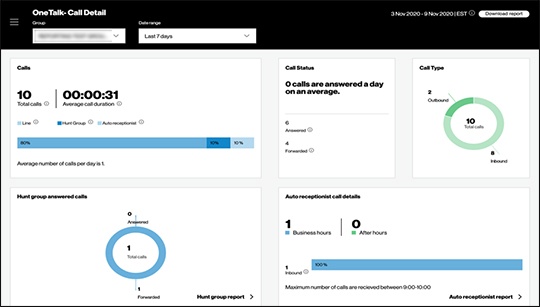
- View the Call Detail page for an overview of all calls for the selected group in your organization.
- ClickDownload reportto download the Call Detail report in CSV or PDF format.Refer to the Report Detail section below for more info on data included in the report download.
- If desired, navigate to the Hunt Group or Auto Receptionist reports by clicking theDetails arrowbelow the appropriate summary view.
Hunt Group Answered Calls
- Sign in to My Business.
- ClickManage Accountfrom the top navigation bar.
- From the Product Tools section, clickOne Talk.
- From the 'I want to' section, clickManage Reporting and Analytics.
- From the Dashboard screen, view the data summary for each reporting type.The Date range dropdown menu allows you to choose between four different time frames, which are reflected in the timestamp in the upper-right corner of the screen:
- Last 24 hours
- Last 7 days
- Last 30 days
- Custom
- To view more detail, selectHunt Group Answered Calls.
- From the dashboard, click theDetails arrowin the lower-right corner of the Hunt group answered calls section.
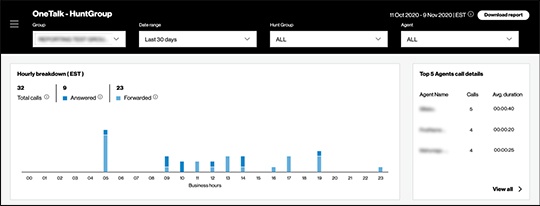
- View the Hunt Group page for a summary of all incoming calls to the selected Hunt Group.
- The top 5 agent metrics are visible on the right side of the report page.Only calls answered by a member of the Hunt Group appear here.
- ClickView allto see details for all agents in the Hunt Group.
- ClickCloseto return to the Hunt Group report page.
- If desired, clickDownload reportto download the Hunt Group report in CSV or PDF format.Refer to the Report Detail section below for more info on data included in the report download.
- To navigate to any of the other available report types, click theMenu iconthen select the desired report from the list (Call Detail, Auto Receptionist, Call Volume).
Auto Receptionist
- Sign in to My Business.
- ClickManage Accountfrom the top navigation bar.
- From the Product Tools section, clickOne Talk.
- From the 'I want to' section, clickManage Reporting and Analytics.
- From the Dashboard screen, view the data summary for each reporting type.The Date range dropdown menu allows you to choose between four different time frames, which are reflected in the timestamp in the upper-right corner of the screen:
- Last 24 hours
- Last 7 days
- Last 30 days
- Custom
- To view more detail, selectAuto Receptionist.
- From the dashboard, click theDetails arrowin the lower-right corner of the Auto receptionist section.
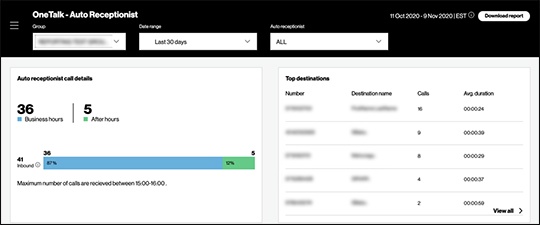
- View the Auto Receptionist page for a summary of all incoming calls to the Auto Receptionists for the selected group.
- The top 5 destinations are visible on the right side of the report page.Only calls answered by an Auto Receptionist appear here.
- ClickView allto see details for all Auto Receptionists.
- ClickCloseto return to the Auto Receptionist report page.
- If desired, clickDownload reportto download the Auto Receptionist report in CSV or PDF format.Refer to the Report Detail section below for more info on data included in the report download.
- To navigate to any of the other available report types, click theMenu iconthen select the desired report from the list (Call Detail, Hunt Group, Call Volume).
Call Volume
- Sign in to My Business.
- ClickManage Accountfrom the top navigation bar.
- From the Product Tools section, clickOne Talk.
- From the 'I want to' section, clickManage Reporting and Analytics.
- From the Dashboard screen, view the data summary for each reporting type.The Date range dropdown menu allows you to choose between four different time frames, which are reflected in the timestamp in the upper-right corner of the screen:
- Last 24 hours
- Last 7 days
- Last 30 days
- Custom
- To view more detail, selectCall Volume.
- From the dashboard, click theDetails arrowin the lower-right corner of the Call volume section.
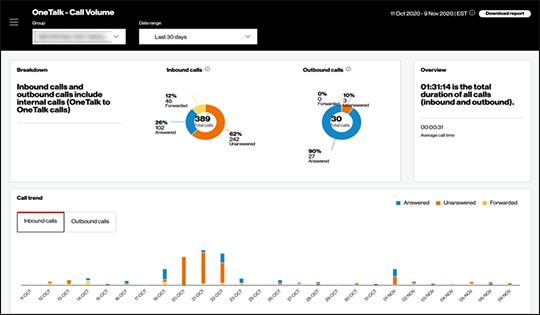
- View the Call Volume page for a summary of incoming and outgoing calls for user lines in the selected group.To switch between inbound and outbound call views, click theInbound callsorOutbound calls tabin the Call trend section.
- If desired, clickDownload reportto download the Call Volume report in CSV or PDF format.Refer to the Report Detail section below for more info on data included in the report download.
- To navigate to any of the other available report types, click theMenu iconthen select the desired report from the list (Call Detail, Hunt Group, Auto Receptionist).
Report Detail
There are 4 different detailed downloads available (one for each report type above). Each report has the same layout and columns.
Reports exported in PDF format contain the field definitions followed by the report details.
Reports exported in CSV format contain two tabs: one for field definitions and another containing the report details.
- Called Number: The number that was called.
- Group: The One Talk group name.
- Time Call Ended: Time when the call was released (disconnected).
- Call Key: Unique call identifier.
- Calling Number: Number of the calling party.
- Forwarded Number: The number to which a call was forwarded.
- Call Duration: The time between the call being answered and subsequently released.
- Start Time: The time the call started, local to the user's time zone.
- Agent number: Identifies the agent who answered the call.
- Direction: Originating signifies outbound calls, while Terminating signifies inbound calls.
- Date: Date of the call.
- Time Call Answered: The time when the call was answered.
- Call Status: Signifies whether the call was Answered, Forwarded or Unanswered.
- Agent name: Name of the agent who answered the call.