Broadband Hotspot Management - Enroll a Device - Verizon MDM (BuSS)
Here's how to enroll a device for broadband hotspots for Verizon MDM (BuSS).
- Verizon MDM content displayed and the ability to modify or update content may vary based on policy, role, or permissions.
- Due to a number of features that require HTML 5, Verizon MDM requires Internet Explorer version 10 and above to work efficiently.
Device Enrollment (or Licensing Assignment) is the final step to set up and use the Broadband Hotspot or UEM device. Please note, this step is not the same as adding a device to a group.
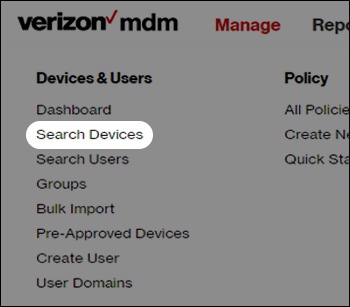
- From the Home screen, hover overManagethen clickSearch Devicesfrom the dropdown menu.
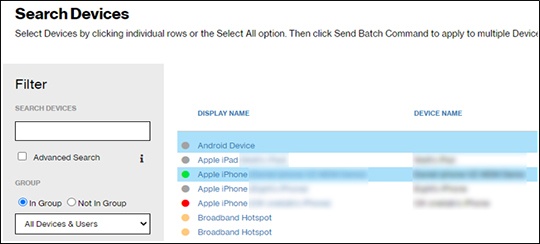
- Scroll through the list to find the device(s) you want to enroll.Use the search field to find specific devices or the Filter menu to find devices more easily.
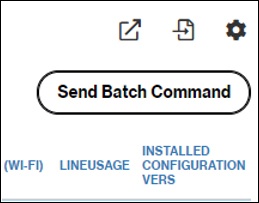
- Highlight the device(s) you want to include then clickSend Batch Command(upper-right).To highlight a device, click its row but not the link in the 'Display Name' column.
- From the 'Issue Batch Device Command' window, selectEnroll devicefrom the appropriate section in the Command dropdown menu then clickAuthenticate.
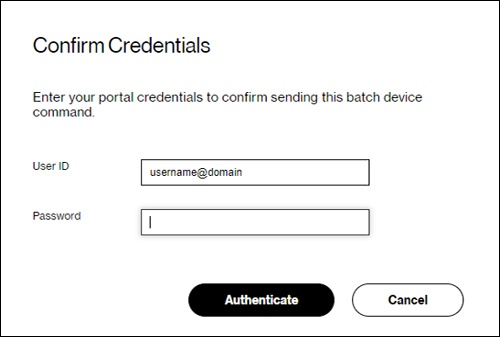
- Enter your admin credentials then clickAuthenticateto complete enrollment.