Smart Wrist by Orbic - Set Date and Time
If your Smart Wrist shows the incorrect date and / or time, here's how to correct it.
Ensure the software on your Smart Wrist™ by Orbic® is up to date as the steps below apply to the most recent version.
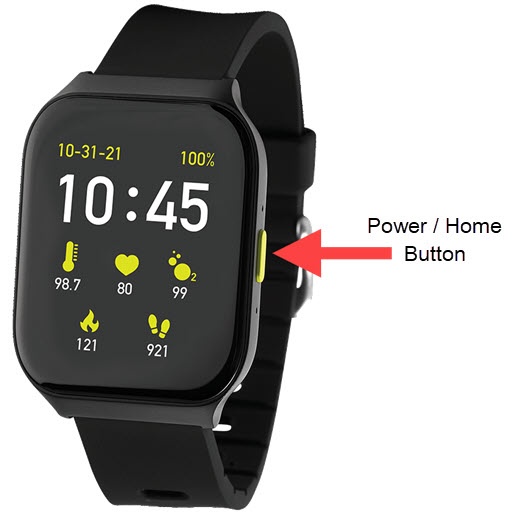
- From the watch screen, press thePower / Home buttonto open the apps screen.
- Tap theSettings icon
.
- TapTime.
- To use network-provided values, tap the following to turn on
:
- Auto Settings
- When manually setting data & time, perform the following:You must turn off
'Auto Settings' to manually adjust date and time.
- TapSet date.
- Select the month, date and year then tap theOKto set.To select, scroll up or down then tap the appropriate option.
- TapSet time.
- Select the hour, minute and am / pm then tapOKto set.To select, scroll up or down then tap the appropriate option.
- TapSelect Time Zone.
- To select, scroll up or down then tap the appropriate option.
- If desired, tapUse 24-Hour Formatto turn on