Samsung Galaxy Chromebook Go - Enable / Disable / Modify SIM PIN
Here's how to change, enable or disable the SIM card lock code on your Galaxy Chromebook Go.
- Enabling the SIM PIN locks the SIM card in your Galaxy Chromebook Go so it can't be used until the correct code is entered.
- If the incorrect PIN code is entered too many times, refer to My Verizon Website - Locate the SIM PIN / PUK to obtain a new PIN Unblocking Key (PUK).
- Navigate:.LauncherSettingsMobile data
- From the 'SIM' section, click theVerizon network details icon
.
- Click the 'Lock SIM card (require PIN to use mobile data)'switchto turn on
or off
.
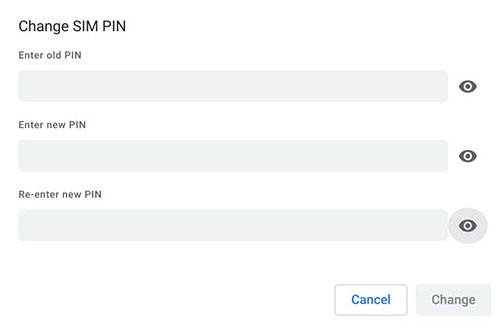
To change your SIM PIN, ensure the switch is turned on then do the following:- Next to 'Lock SIM card (require PIN to use mobile data)' clickChange PIN.
- Enter the old PIN, the new PIN, and re-enter the new PIN, then clickChange.The default SIM PIN is 1111.
- Enter the current SIM PIN clickEnter.