Arlo Go 2 LTE Security Camera - Factory Data Reset (Powered On)
Here's how to factory / hard reset your Arlo Go 2 security camera if it's unresponsive or sync issues occur.
Perform a factory data reset only if necessary as it removes current settings and the camera feed from your Arlo app.
Preferred Method
- Open the Arlo app or navigate and sign in to the Arlo web portal at https://arlo.netgear.com/ via a browser.The Arlo web portal doesn't support Internet Explorer®. For more info visit Arlo system requirements.If necessary, install the Arlo app.If your camera is not connected to a mobile or Wi-Fi network, an alternate reset can be performed.
- From the Devices tab, tap or click theSettings icon
(to the right of the desired camera name).
- Tap or clickRemove Device.May require scrolling to the bottom.
- To confirm, review the disclaimer then tapContinue.Allow several seconds for the process to complete.If needed, set up your device.
Alternate Reset
Utilize this method if your camera isn't connected to a mobile or Wi-Fi network.
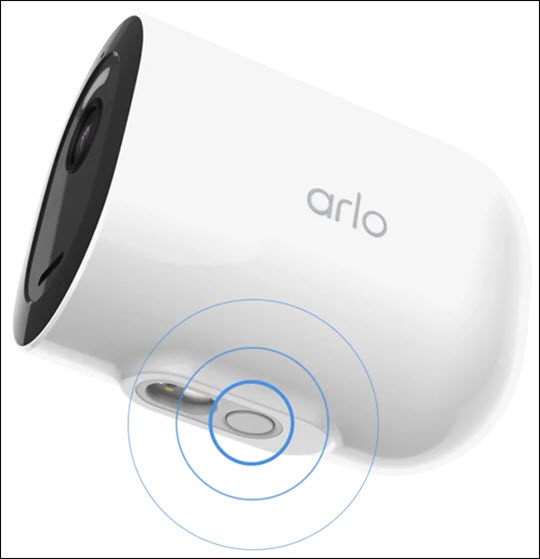
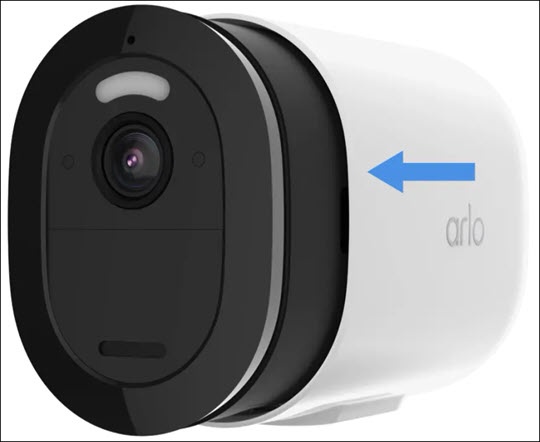
- Release the camera from the protective housing.Press the button on the magnetic charging port until a click is heard and the camera slides out partially.
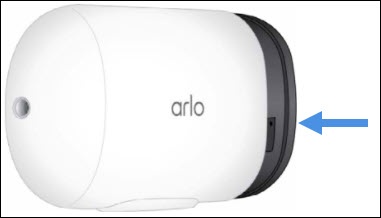
- Utilizing the notches on both sides, pull the camera to remove it from the housing.
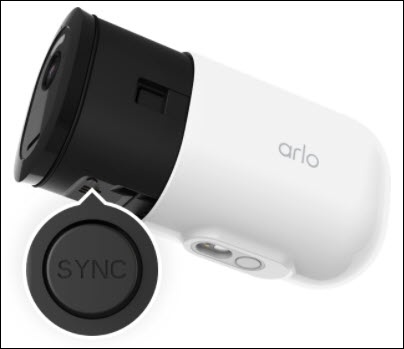
- Press theYNC buttonuntil the camera LED blinks amber (about 15 seconds) then release.
- Allow several seconds for the process to complete.If needed, set up the security camera.
- Slide the camera back into the protective housing until it clicks.