Verizon Internet Gateway Activate / Set Up Device
Verizon Internet Gateway
Activate / Set Up DeviceLearn how to unbox, assemble, and activate your Internet Gateway to get your home network running smoothly without any hassle.
Before you begin
Inside the box Verizon Internet Gateway box:
- Setup guide
- Verizon Internet Gateway (ARC-XCI55AX)
- Power adapter
- Ethernet cable
A My Verizon account is necessary to manage your device. Refer to Create Profile / Register for My Verizon - Website for more info.
Out of Box Setup
- Remove the Gateway from the box.
- Place the Gateway on a stable surface near a window.
- Connect the power adapter to the Gateway and plug it into a power outlet.The Gateway’s blinking white light means it’s starting up. The light may fluctuate between red and white for up to 5 minutes; don’t unplug the Gateway. If the light turns solid red, move the Gateway to a different location and try again or get help in the My Verizon app via the info below.
- Check for a solid white light on the Gateway.It can take up to 5 minutes to appear. Once the Gateway shows a solid white, the setup is complete.
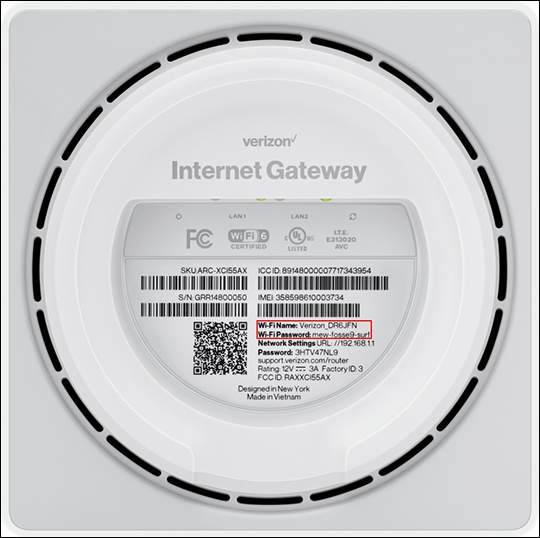
- Connect your devices to your new Wi-Fi network.Use the Wi-Fi name and password printed on the bottom of the Gateway to connect your devices. Or scan the QR code printed there to connect automatically. You can edit your Wi-Fi name and password in the My Verizon app.
Advanced Setup via My Verizon app
- Using a mobile device, open the camera and scan the QR code located on top of the toolkit box found inside the router box.If you're unable to scan the QR code, open a browser on your mobile device and navigate to thehttps://setup.verizon.com/homewebsite.
- TapStart 5G Home Internet setupto get started.
- From the 'Let's get started' screen, tapContinue.
- Remove the router and AC adapter from the box then tapContinue.
- Review the 'Tips to set up the Gateway' then tapGot it.
- Make sure it's near a window on or above the ground floor. Avoid windows in the basement.
- Place it on a high surface to allow the signal to transmit to every area of your home. This allows the signal to transmit to every area of your home.
- Clear away any objects to close to the window. Clutter could interfere with the Gateway getting a signal.
- Place the router on a high surface near a window or exterior-facing wall then tapContinue.
- Connect the AC adapter to the router and plug it into an outlet. You will see a white blinking light for about 5 minutes. TapContinuewhen the light stops blinking.
- Wait 5 minutes until you see a solid white light then from the screen prompt, tapSolid white light.If you see a solid red light, the Gateway has found a weak signal. TapUse 5G compassthen follow the onscreen prompts or watch this 5G compass video for more info. This option is only available for 5G Home Plans.If you see a blinking white light, the device may be updating firmware. Wait for about 5 minutes until you see a solid white light.
- Once you click on Solid white light, tapContinueafter the following screens display: Communicating with the Gateway > Checking your connection > Connecting to the internet > You found a strong signal.
- Connect to Wi-Fi either by scanning the QR code on the bottom of the Internet Gateway with your phone or by entering the Wi-Fi name and password on your device then tapContinue.
- From the 'Success' screen, tapManage networkto personalize your Wi-Fi name and password in Network settings, and more.