Inseego MiFi X PRO 5G UW - Battery Power Management Settings
Here's how to configure display, sleep and power-down options for your Inseego MiFi X PRO 5G UW.
Screen Timeout / Sleep Mode
The MiFi display on your Inseego MiFi® X PRO 5G UW is designed to dim to save battery life. The 'battery power management' settings only apply when the device isn't being charged.
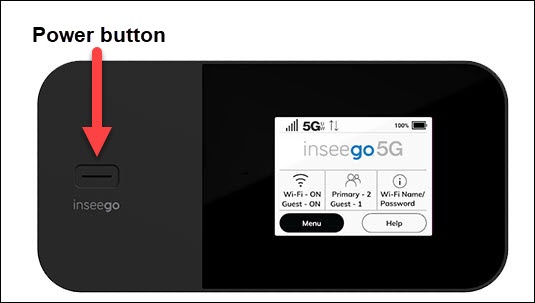
- From the Home screen, tapMenu(lower-left).If necessary, press thePower buttonto turn on the display.
- TapSettings.
- TapScreen Timeout.
- Select the desired setting (e.g., 30 seconds, 1 minute, 5 minutes, etc.).Selected when a red dot is present.
- Tap theBack icon
(upper-left) to return to the previous screen.
- TapSleep Mode.
- Select the desired setting (e.g., After 5 minutes, After 15 minutes, etc.).Selected when a red dot is present.
You can also manage settings via the Admin Web Interface by navigating: then select desired options from the dropdown menus.
Auto Shutdown
Unless a charger is connected, the Inseego MiFi® X PRO 5G UW automatically shuts down after 1 hour if there are no devices connected to it.
- Access the Admin Web Interface.
- From the Settings section, click theNavigation arrow
(lower-right) to open the Settings page.
- From the Device Preferences tab, click theShutdown Dropdown menuthen select the desired option (e.g., Never, After 1 hour, After 2 hours, etc.).
- ClickSave Changes(lower-left).