One Talk Mobile App Troubleshoot Call-Through Errors
One Talk Mobile App
Troubleshoot Call-Through ErrorsFollow these steps to correct error messages that may occur when attempting to validate your mobile number during Call-Through setup in the One Talk mobile app.
Before you begin
The instructions below will help if you experience error messages at the following screen while setting up Call-Through: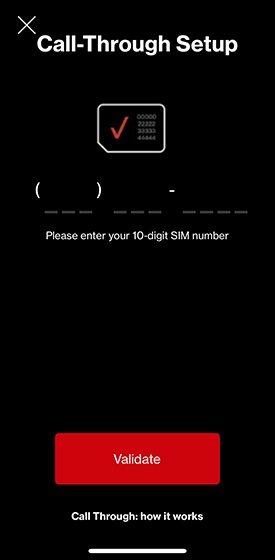
Generic error messages (e.g., An error occurred, please try again later, etc.)
- Ensure the entered number was the native phone number of the device on which the app is installed and not the One Talk number.If the number entered was not the One Talk number, continue to step 2.
- Close theOne Talk app.
- Turn off Wi-Fi on your device.
- Ensure your device is receiving strong cellular signal.
- Open theOne Talk app.
- Tap the3-line Menu.
- Tap theCalling mode switchat the center of the screen to turn Call-Through on and reattempt setup.
Error: Call-Through is unavailable at this time
This error can occur if Call-Through was not turned off before changing devices or reinstalling the One Talk app.
- Install theOne Talk appon a different device.
- Open the app then tap the3-line Menu.
- TapSettings.
- Navigate: .
- Tap theDelete iconnext to the phone number for the device you want to remove.
- Close theOne Talk app.
- On the device you want to use for Call-Through, reopen the app then tap the .
- Tap theCalling mode switchto enable Call-Through then reattempt setup.