TCL FLIP 3 - Move Media Files to / from Computer
Here's how to transfer picture, video or music files between your FLIP 3 and a computer.
Only unprotected video / music files can be transferred using this method.
- If using a Macintosh® computer, additional software is required in order to transfer files.
- Pictures or videos can also be transferred to an SD / memory card.
- Connect your FLIP 3 to a computer using the supplied USB cable.
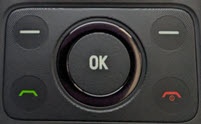
- From the main screen, press theOK button.Utilize the 5-way navigation pad to highlight and the OK button to select.
- SelectSettings.
- From the Storage tab, selectUSB Storagethen selectEnabled.
- From your computer, open File Explorer or Windows Explorer.Using the computer keyboard, press theWindows+E(
+E)
keys.Alternatively, right-clickStartthen click 'Open Windows Explorer' or 'File Explorer'. - Using File Explorer or Windows Explorer, navigate: .TCL FLIP 3 is listed under the 'Devices and drives' section of 'This PC'.
- Utilize the computer to copy media files between the appropriate folder on the device and the desired location on the computer's hard drive.Some folders that may contain files on the device include:
- DCIM\Camera
- Download
- Movies
- Pictures
- Music
- When finished, disconnect the USB cable from the computer.