Orbic JOURNEY PRO / JOURNEY PRO LITE - Insert or Remove SD / Memory Card
Here's how to insert or remove an SD / memory card for your JOURNEY PRO / JOURNEY PRO LITE.
The Orbic® JOURNEY PRO / JOURNEY PRO LITE supports up to a 128 GB microSD card which can be purchased from any Verizon store or online.
- Ensure the device is powered off.
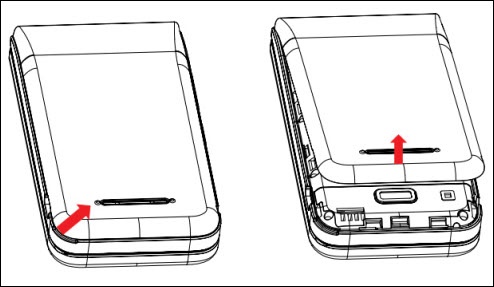
- Remove the battery cover.Insert your fingernail (or a similar tool) into the cutout located on the lower-center of the battery cover to lift and remove the cover.
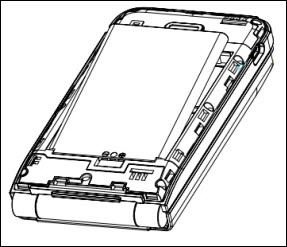
- Use the fingertip cutout at the top of the battery compartment to lift the battery out.
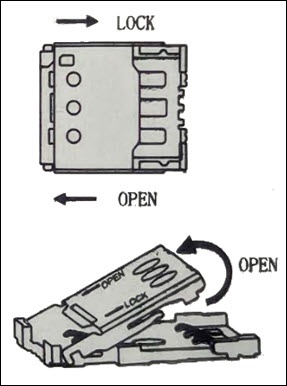
- Slide the SD tray to the left to unlock it.
- Do one of the following:
- Insert SD / memory cardPlace the SD card into the SD tray with the gold contacts facing down.
- Remove SD / memory cardPress down on the tab holding the SD card in place then slide the SD card out.
- Push the tray down over the slot then lock the tray by sliding right.
- Ensure the gold contacts line up then press down gently to secure.
- Attach the battery cover.Press down along the edges to lock into place.