Managing SNPP Connections - Enterprise Messaging (EMAG)
Here's how to manage SNPP Connections when using Enterprise Messaging.
Create a connection
- Sign in to Enterprise Messaging.
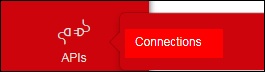
- From the left navigation menu hover over 'APIs' then clickConnections.To view the navigation menu, click theredtab.
- Click theSNPP tab.
- ClickAdd new.
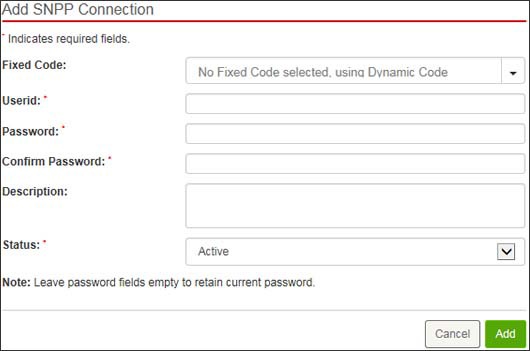
- Enter the appropriate info (e.g., Fixed code, Userid, Password, etc.) then clickAdd.Authentication for SNPP connections in EMAG is done based on the incoming IP, userid and password .


Modify a connection
- Sign in to Enterprise Messaging.
- From the left navigation menu hover over 'APIs' then clickConnections.To view the navigation menu, click theredtab.
- Click theSNPP tab.
- From the SNPP connections screen, click the desired SNPP connection Userid (located on the left side).
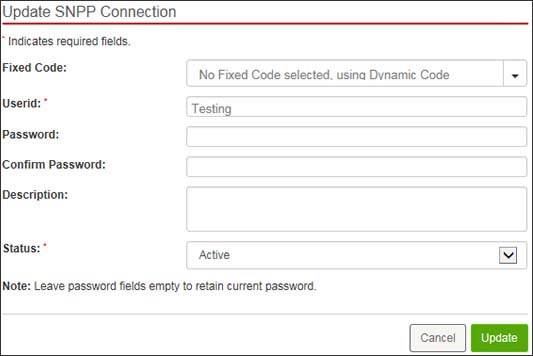
- Modify the settings (e.g., Fixed code, Userid, Password, Return URL, etc) as desired then clickUpdate.

Delete a connection
- Sign in to Enterprise Messaging.
- From the left navigation menu hover over 'APIs' then clickConnections.To view the navigation menu, click theredtab.
- Click theSNPP tab.
- From the SNPP connections screen, locate the connection then clickRemove icon(far-right).If presented, clickRemove.

SNPP Telnet Settings
Telnet is a text-based program to connect to another computer using the Internet. Telnet allows a user to access programs and services remotely.
- Sign in to Enterprise Messaging.
- From the left navigation menu hover over 'APIs' then clickConnections.To view the navigation menu, click theredtab.
- Click theSNPP tab.
- Connect to EMAG via telnet using “snpp.emag.vzw.com 444”.
- Use one of the following syntax to log in to EMAG via Telnet:
- Login [username] [password] OR LOGIN [username] [password]