Managing XML Connections - Enterprise Messaging (EMAG)
Here's how to create, modify or delete XML connections for Enterprise Messaging (EMAG).
Create Connection
- Sign in to Enterprise Messaging.
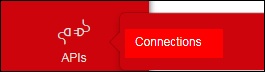
- From the left navigation menu hover over 'APIs' then clickConnections.To view the navigation menu, click thered tab
.
- Click theXML tab.
- ClickAdd new.
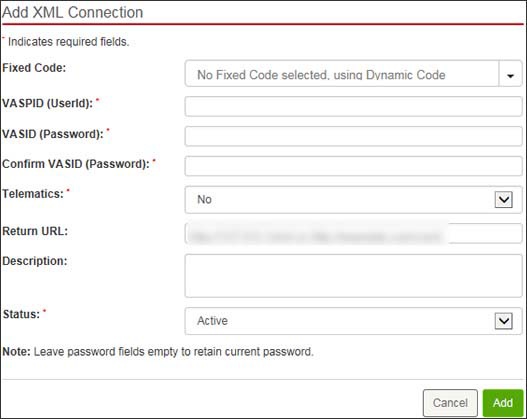
- Enter the appropriate info (e.g., Fixed code, VASPID, VASID, Telematics, Return URL, etc.) then clickAdd.Authentication for XML connections in EMAG is done based on the incoming IP, VASPID (userid) and VASID (password).

Modify Connection
- Sign in to Enterprise Messaging.
- From the left navigation menu hover over 'APIs' then clickConnections.To view the navigation menu, click thered tab
- Click theXML tab.
- From the XML connections screen, click the desired XML connection Userid (located on the left side).
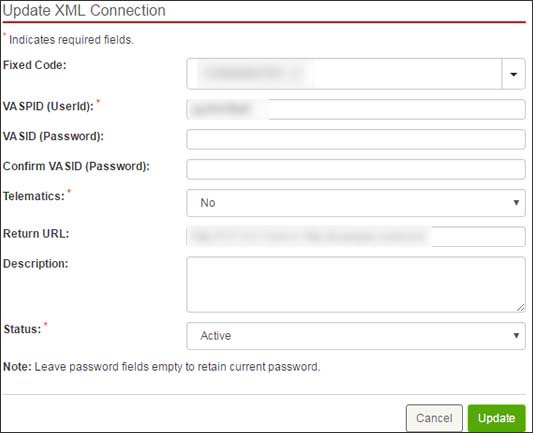
- Modify the settings (e.g., Fixed code, Userid, Password, etc.) as desired then clickUpdate.

Delete Connection
- Sign in to Enterprise Messaging.
- From the left navigation menu hover over 'APIs' then clickConnections.To view the navigation menu, click thered tab
- Click theXML tab.
- From the XML connections screen, locate the connection then clickRemove icon(far-right).If presented, clickRemove.
