Add a WPS Client - Verizon 4G LTE Broadband Router
Here's how to add a WPS client to your 4G LTE Broadband Router.
Wi-Fi Protected Setup (WPS) / Push 'N' Connect allows new wireless clients to be added without having to enter any wireless setting (network name, wireless key, etc.). The wireless client must support WPS. Windows 7 and Windows Vista (SP1) have native WPS support.
Push Button
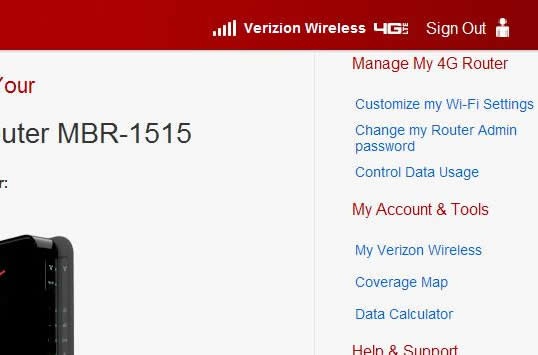
- Access the router configuration tool then clickCustomize my Wi-Fi Settings(upper-right corner).For assistance with accessing the router configuration page, refer to Accessing the Router Configuration.
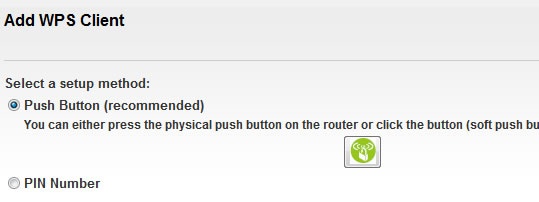
- From the Add WPS Client tab, clickNext.
- Press thePush button(first button in front of the router) on the router or click thegreen buttonon the screen.The router tries to communicate with the client for 2 minutes.
- On the wireless client, run the WPS configuration utility then follow the instructions to click a WPS button.
- A confirmation screen is displayed. The router generates a SSID and implements WPA/WPA2 wireless security.Note the SSID and WPA/WPA2 for the wireless network.

PIN Number
- Access the router configuration tool then clickCustomize my Wi-Fi Settings(upper-right corner).For assistance with accessing the router configuration page, refer to Accessing the Router Configuration.
- From the Add WPS Client tab, clickNext.
- Select thePIN Number radio button.
- On the wireless client, run the WPS configuration utility then follow the instructions to generate a PIN.
- On the router Add WPS Client screen, enter the client's PIN then clickNext.The router tries to communicate with the client for 4 minutes.
- A confirmation screen is displayed. The router generates an SSID and implements a WPA/WPA2 wireless security.Note the SSID and WPA/WPA2 for the wireless network.