Port Forwarding - Verizon 4G LTE Broadband Router
Here's how to open blocked ports on your 4G LTE Broadband Router to allow additional access.
Port forwarding is an advanced networking feature. For additional assistance, contact the local computer technician or IT support. To obtain app settings, contact the app creator.
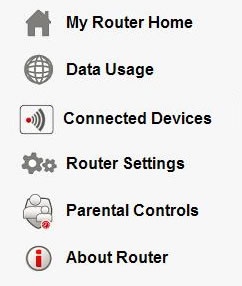
- Access the router configuration tool then clickRouter Settings(on the left).For assistance with accessing the router configuration page, refer to Accessing the Router Configuration.
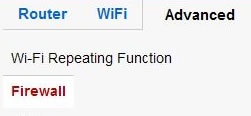
- From the Advanced tab, clickFirewall.
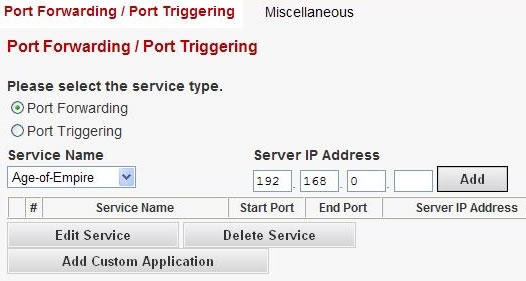
- Ensure thePort Forwarding radio buttonis checked then configure as desired.
- To add a service, select the service name (from the dropdown) and enter the Server IP Address then clickAdd.
- To edit a service, select the service (from the table), clickEdit Serviceand adjust then clickApply.
- To delete a service, select the service (from the table) then clickDelete Service.
- To add a custom service, clickAdd Custom Applicationand enter the appropriate information then clickApply.