Verizon LTE Internet and Home Phone - Wi-Fi Password
Here's how to manage the Wi-Fi password for your Verizon LTE Internet and Home Phone.
- The directions for viewing the password are from the device itself; you must access the admin page to change it.
- The former name of this device is the Verizon 4G LTE Broadband Router with Voice.
View Password
- From the Home screen on the front of the router, tapMenu.Utilize the Scroll buttons to highlight and the Checkmark button to select.
- Highlight 'Wi-Fi' then tapOpen.
- View the name and password then tapMore.
- TapMoreagain then tapClose.
Change Password
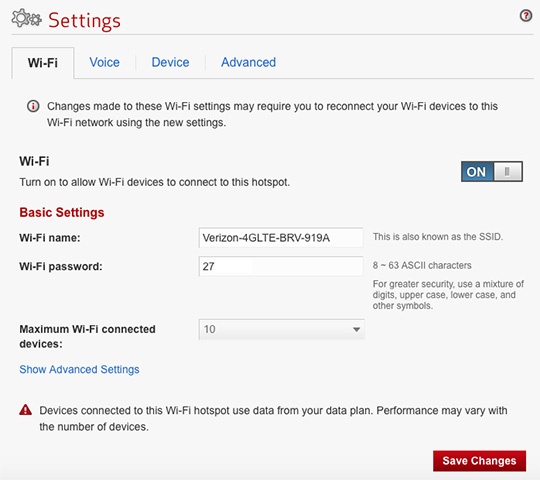
- To change the password, access the router configuration page then clickCustomize my Wi-Fi Settings(under Manage My LTE Internet and Home Phone).For assistance with accessing the router configuration page, refer to Accessing the Router Configuration.
- From the Wi-Fi Profile tab, edit the Wi-Fi password then clickSave Changes.