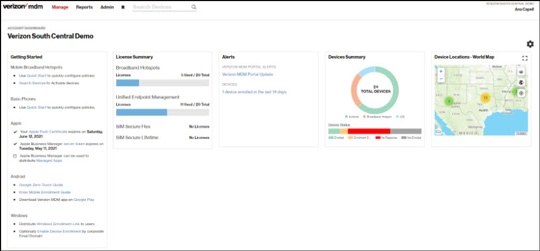
Add License - Verizon MDM (BuSS)
Here's how to add or edit licenses for the Verizon MDM (BuSS).
- Verizon MDM content displayed and the ability to modify or update content may vary based on policy, role, or permissions.
- When a device is first placed on an account with MDM management in the BuSS, the device may take up to 24 hours to display in the MDM management portal and be eligible for assigning an MDM license. If the device doesn't display after 24 hours, escalate with IT using the AYS ticket system.
- Due to a number of features that require HTML 5, Verizon MDM requires Internet Explorer version 10 and above to work efficiently.
- A Verizon MDM license is automatically consumed when the device is placed under Verizon MDM management.The MDN may take up to 24 hours to display.
- There are a few ways this can happen:
- For Hotspots:
- Make sure the hotspot is assigned to a group.
- Verify licenses are available from Verizon MDM management.
- Activate the hotspots in the Verizon MDM portal.
- SelectManage(top).
- SelectSearchDevices(under Devices and Users).
- Select the device you would like to activate.
- From the Send Command dropdown, selectEnroll Device.
- For Unified Endpoint Management (tablet and phones):
- Devices may be manually activated by downloading the Verizon MDM application on the phone/tablet and signing in with a User ID.
- Devices may be activated by using supervisory mode (Apple Business Manager.)