Connected Car Wi-Fi (Toyota) View Device ID (IMEI)
Connected Car Wi-Fi (Toyota)
View Device ID (IMEI)The Device ID (IMEI) is a unique identifier for your Toyota head unit. This info is essential when troubleshooting certain issues or activating a device on your account.
Before you begin
The IMEI is required to sign up for service and can be used to identify your account.
The head unit must be paired with the Toyota app for all menu options to be available.
Ensure the vehicle is paired to the head unit via Bluetooth®.
Steps
- Open theToyota app.
- If necessary, tapRegisterand proceed through the Registration process if you do not already have a Toyota account.If you already have a Toyota account, log in.
- Confirm the vehicle's VIN is added in the Toyota app.
- To add the VIN, tapAdd a Vehicle(upper-right).
- Enter the vehicle's VIN.
- TapAdd Vehicle.
- Tap theBack icon.
- To verify your vehicle is capable of Verizon Wi-Fi Connect perform the following:
- Tap theGlovebox tile.
- Scroll to Specs & Capabilities then tapCapabilities.
- Scroll down to confirm 'Wi-Fi Connect' and 'App Suite Connect 3.0' display.
- If necessary, perform the following to enable Wi-Fi Connect; otherwise, skip to 7 to view the IMEI and complete Registration.
- TapAdd Service.
- TapWi-Fi Connect.
- TapGo to Verizon.
- Follow the on-screen instructions to complete activation. Options vary based on account status and plan.
- From the head unit, pressMenu.
- TapApps.
- From the left pane, tapInfotainmentthen tapSign Up.If necessary, tap theRight arrowto view more apps.
- TapSign Up.
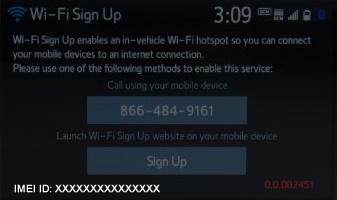
- From the Wi-Fi Sign Up screen, view the IMEI ID located in the lower-left.The X in the image below represents the unique 15-digit IMEI ID.If you're unable to view your vehicle's IMEI, ensure the VIN is added in the Toyota app and it's paired to your vehicle.